


 Contact
 FAQ
FAQ Quick Reference GuideUser Guide
 Court
Court Calendar
Contact us
Contact Details


10 A.M. - 6 P.M. Working Days

Find the right case, faster.
A plain-language, step-by-step guide to AIROnline, with real screens.
Screens captured on 8 October 2026 from the signed-in website. Menus and button names can change as AIROnline is updated.
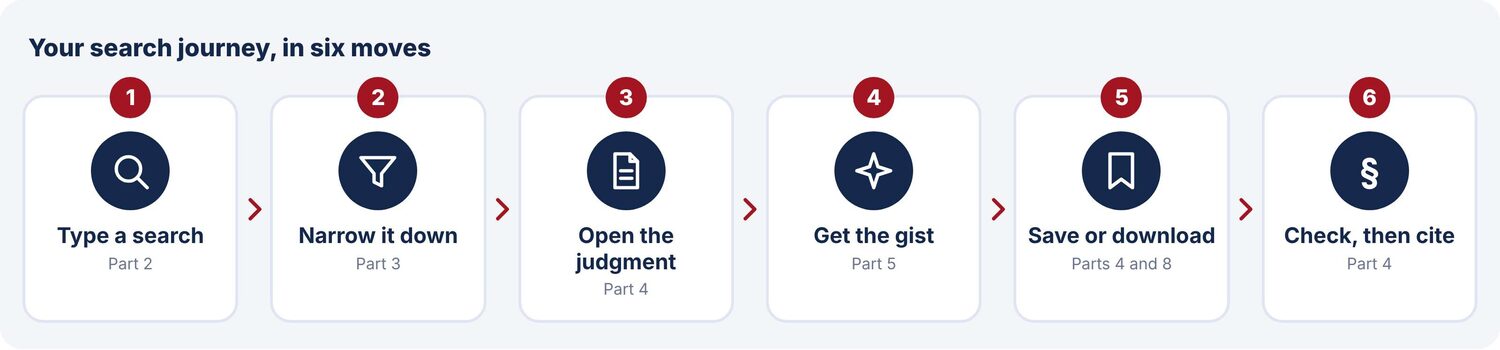
What is in this guide
- Getting started: Signing in and welcome to home screen
- Quick search: Type and go
- Reading the search results and narrowing them down
- Opening a judgment and using our toolbar
- AI Insights: A smart brief summary of a judgment
- The home-screen tools: Know them one by one
- AI Search: Ask a question in simple words
- Your own space: Bookmarks, saved searches and notes
- Using AIROnline on a phone or tablet
- Tips, common problems and whom to call
- One-page cheat sheet
Before you begin
- You need your AIROnline sign-in and an active subscription. What you can open depends on the Courts covered under your plan.
- Use a recent browser (Chrome, Edge, Safari or Firefox). A normal broadband or mobile connection is enough.
- Sign out when you finish on a shared computer.
Getting started
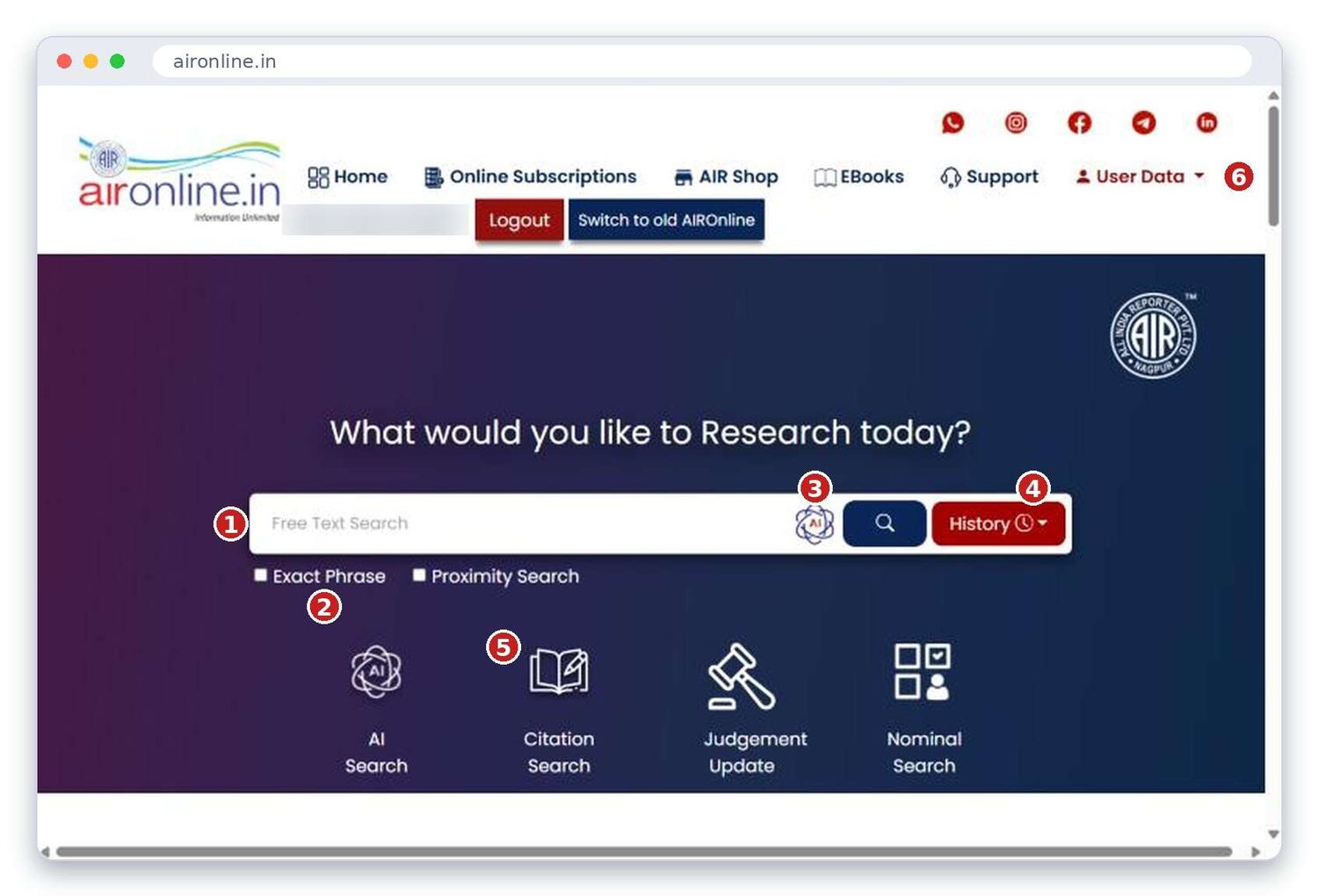
After you sign in, you land on the home screen. Everything starts from the big search box in the middle.
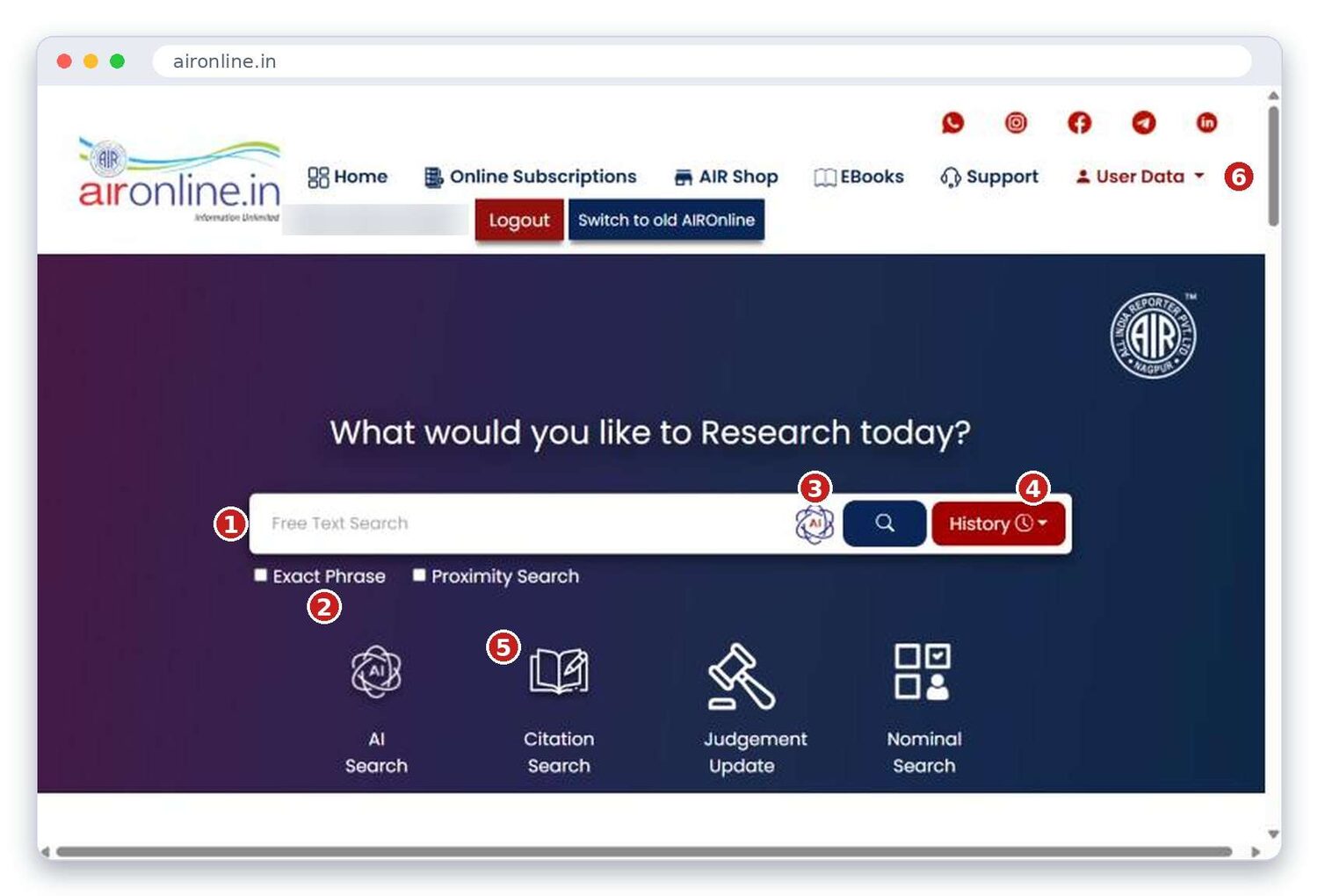
- Free Text Search box. Type what you are looking for, in your own words.
- Exact Phrase and Proximity Search. Tick one of these to make the search stricter (see Part 2).
- AI icon. Takes you to AI Search, where you can ask a full question (see Part 7).
- History. Shows your recent searches so you can run one again without retyping.
- Search tiles. Shortcuts to AI Search, Citation Search, Judgement Update, Nominal Search and Acts & Section Search.
- User Data menu. Your own space (see Part 8). Next to it are Online Subscriptions, AIR Shop, EBooks and Support.
More tools further down the home page
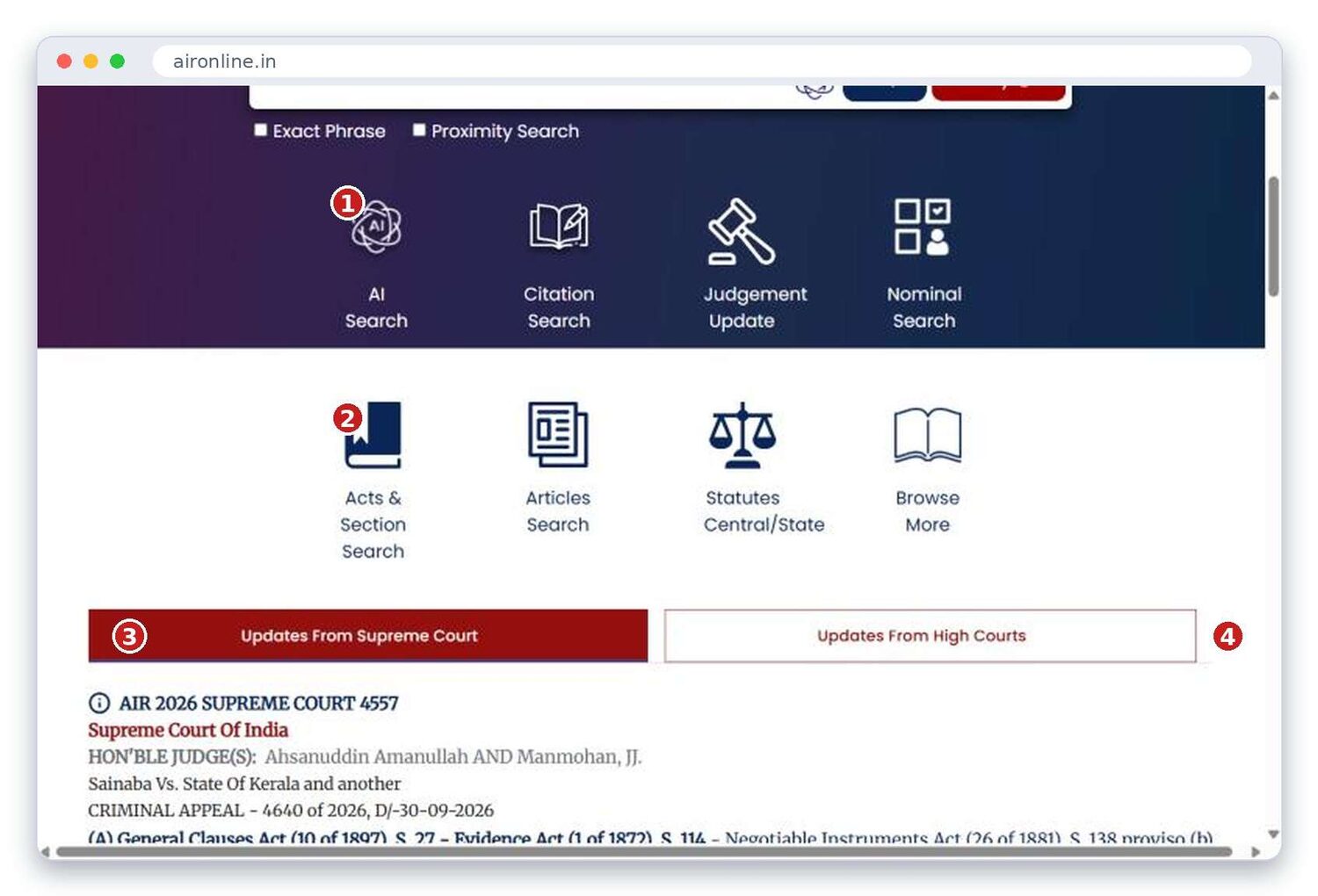
- First row of tiles. AI Search, Citation Search, Judgement Update, Nominal Search, Acts & Section Search.
- Second row of tiles. Articles Search, Statutes (Central/State), Pay as You Use model and Browse More. Part 6 explains every tile.
- Updates From Supreme Court. The newest Supreme Court judgments, with a short note on each. Open the case you want by clicking it.
- Updates From High Courts. Click to see the newest High Court judgments instead.
Check "Updates From Supreme Court" each morning. It is the quickest way to see what was decided last week.
The header also has a "Switch to old AIROnline" button. It opens the earlier version of the site. Most people will not need it.
Quick search: type and go
This is the fastest way to find cases on a point of law or a set of facts. Start broad, look at the first few results, then add one more word to narrow it. Searches with too many words often return fewer useful cases.
- Click the ‘Free Text Search’ box on the home screen.
- Type your words. Short and specific words will work best. For example: notice served on mother of accused under Section 138.
- Click the blue search button, or press Enter.
- Wait a few seconds. The results page opens in the same window.
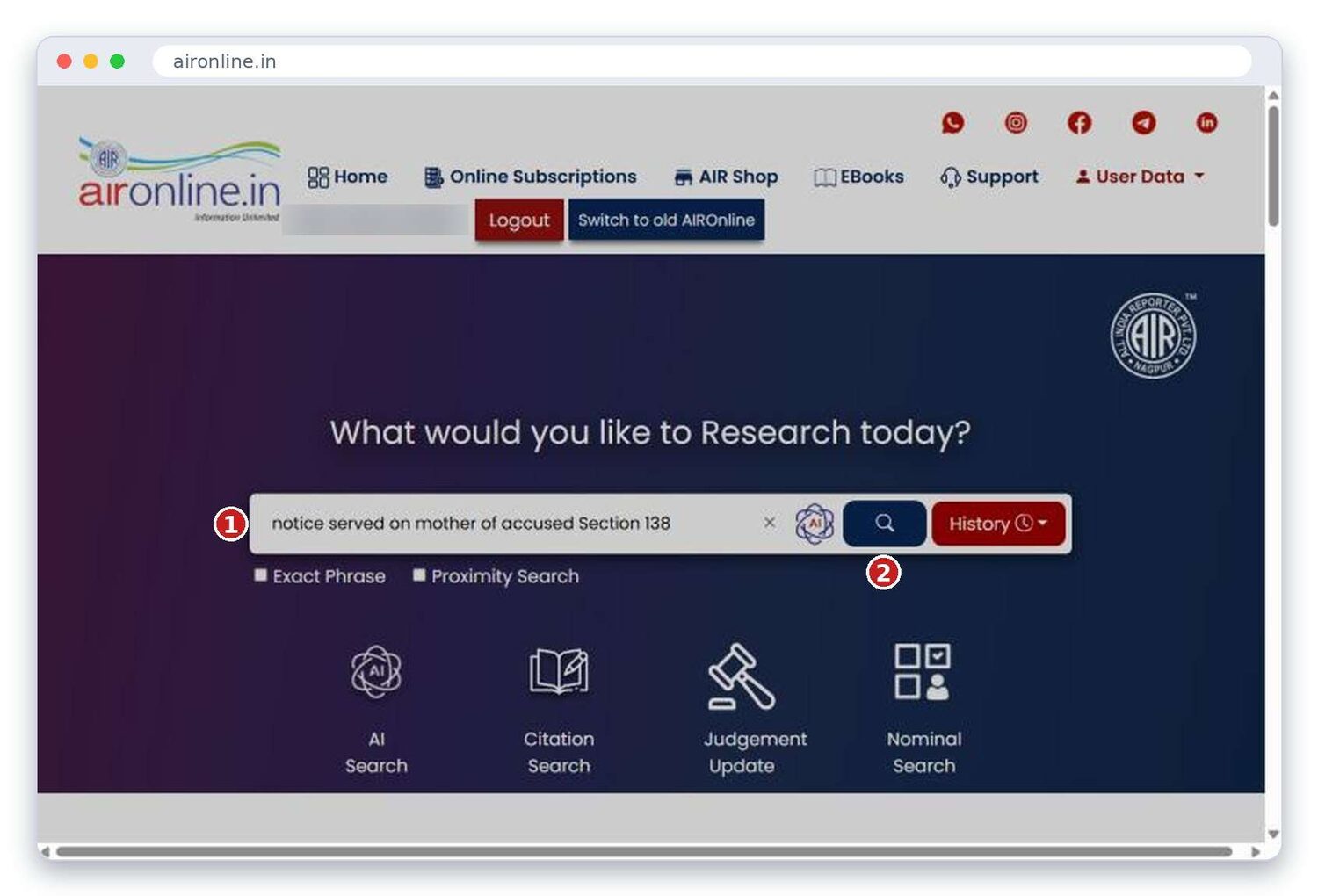
- Your words. Type facts, a section number, a party name or a legal idea.
- Search button. Click it to run the search.
Make the search stricter
| Option | What it does | Use it when |
|---|---|---|
| Exact Phrase | Finds only pages that contain your words together, in the same order. | You remember a line from a judgment. |
| Proximity Search | Finds pages where your words appear close to each other, not necessarily side by side. | Exact Phrase finds too little, and plain search finds too much. |
| Neither ticked | Finds pages that match your words anywhere. | You are exploring a topic. |
Reading the search results and narrowing them down
The results page shows how many cases matched and how long the search took. Your search words are highlighted in yellow inside every result.
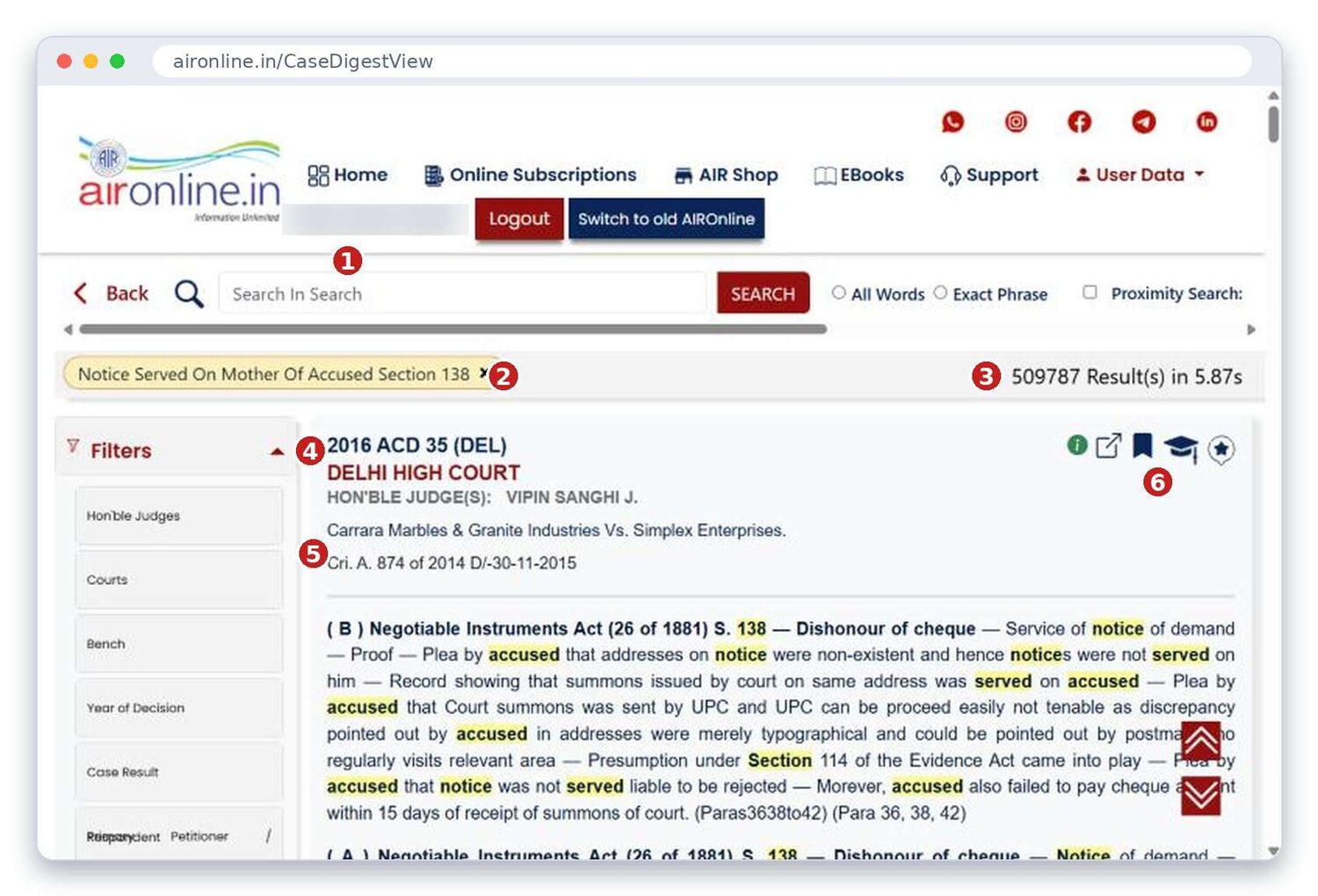
- Search again. Use this box to search within these results, or tick All Words, Exact Phrase or Proximity.
- Your search chip. Shows what you searched for. Click the small x on it to clear it.
- Result count and time. A big number means your search is broad. Add more filters for refined results.
- Filters panel. Narrow the list by judge, court, bench, year, case result, party and database.
- A result card. Shows the citation, court, judges, parties, case number and date, then the headnote lines that matched.
- Card icons. The small icons on each card open the case or let you bookmark it. Hover over an icon to see its name.
Using filters
- Click a filter heading such as Courts. A list opens under it.
- Tick the courts you want. Use the small search box in the list to find a name quickly.
- The results refresh to show only those courts. Repeat with Year or Case Result to narrow further.
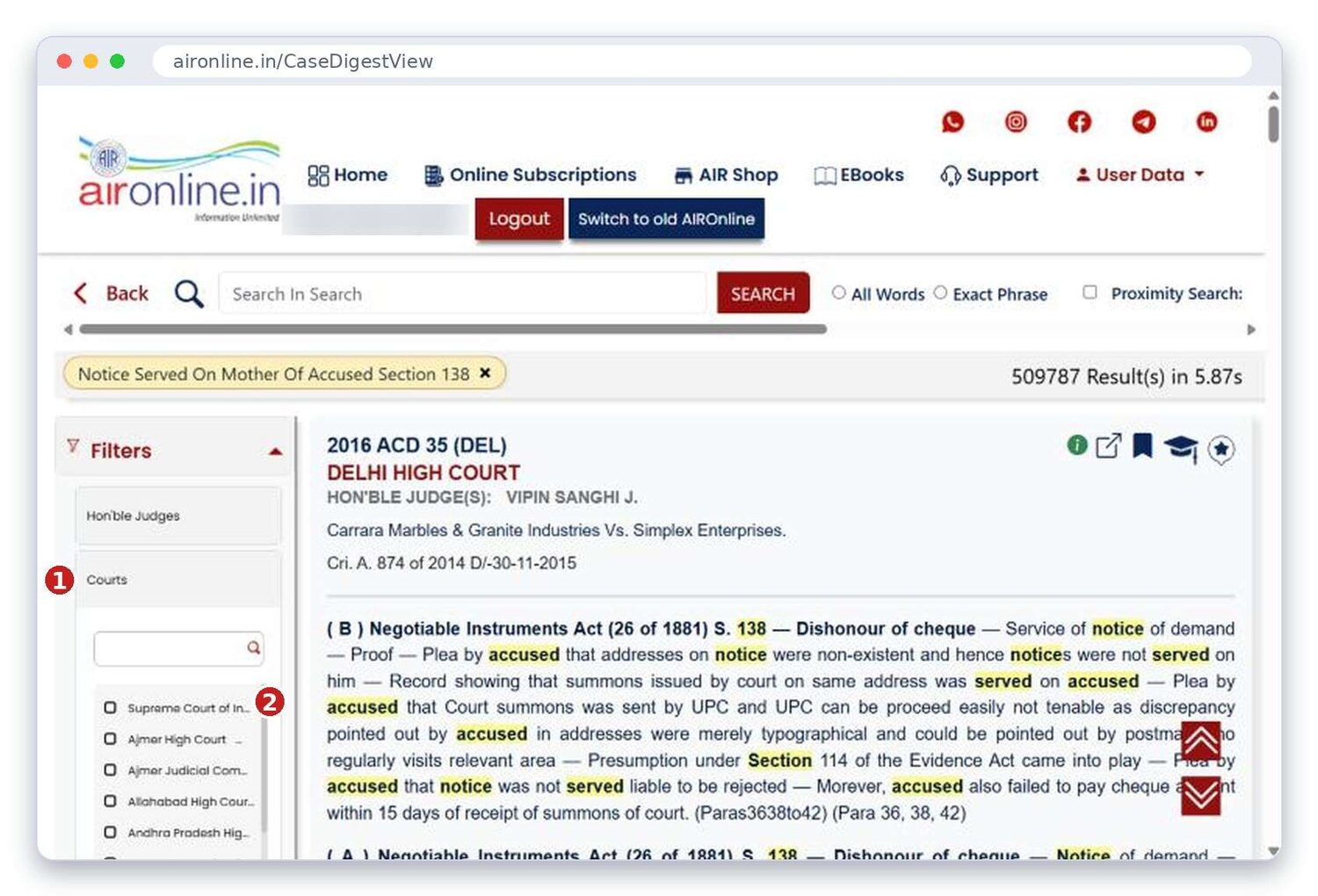
- Filter heading. Click to open or close it.
- List of choices. Tick one or more. The first entry is the Supreme Court of India.
If a search returns hundreds of thousands of results, filter by Court first, then by Year. You will usually get to a readable list in two clicks.
Results are listed in the order the system ranks them. The newest or highest-court case is not always at the top, so scan the first page before you pick a case.
Opening a judgment and using its toolbar
Click a result card to open the full judgment. It opens in a new tab, so your results stay where you left them. The toolbar across the top has everything you need while reading.
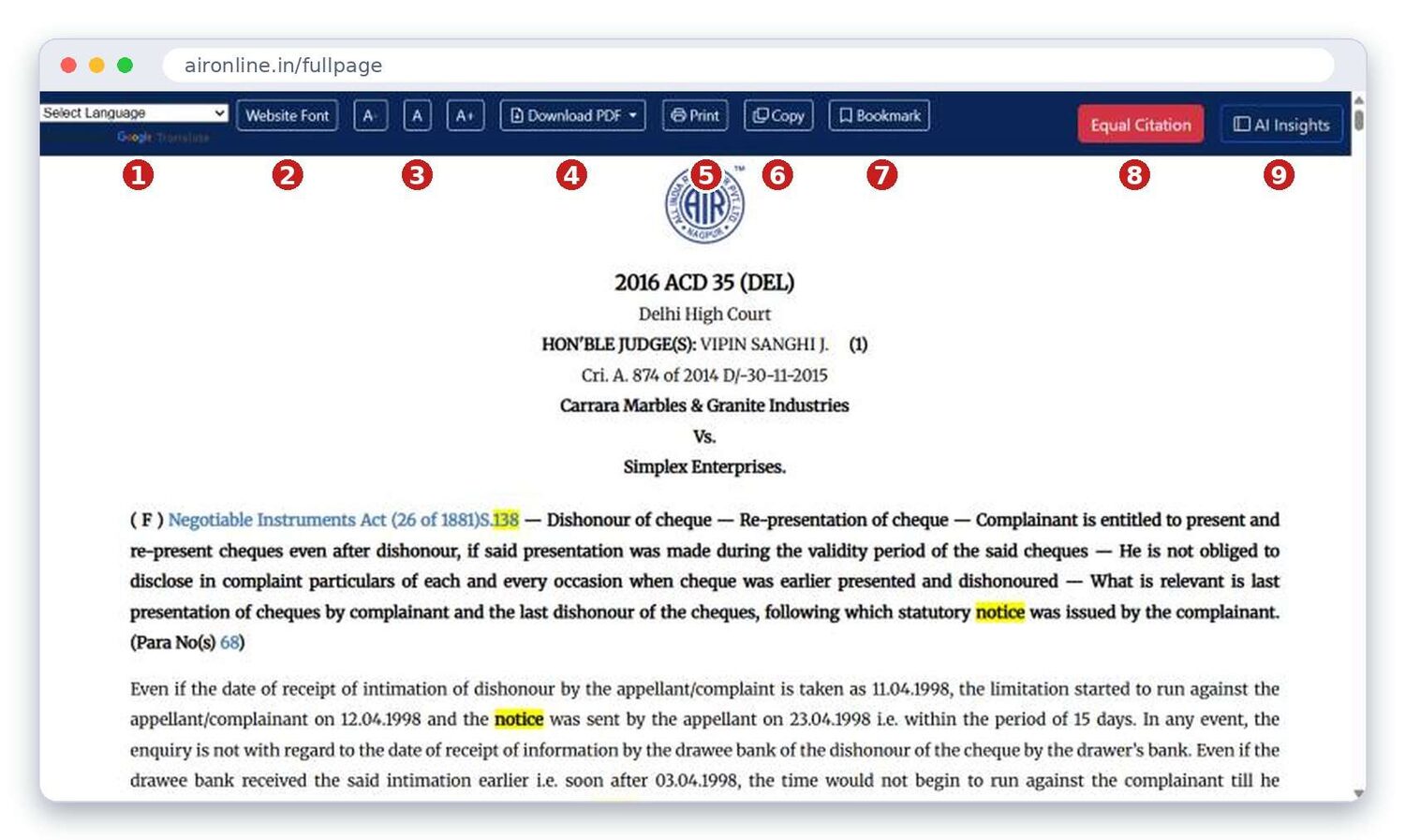
- Select Language. Translates the page into another language using the built-in translator. Machine translation can be wrong, so keep the English text for anything you will quote.
- Website Font. Changes the font style.
- A-, A, A+. Makes the text smaller, normal, or larger.
- Download PDF. Opens a small menu (see below).
- Print. Prints the judgment.
- Copy. Copies the text so you can paste it into your notes.
- Bookmark. Saves the case to your own list so you can find it again (see Part 8).
- Equal Citation. Shows other citations for the same judgment, where they are available.
- AI Insights. Opens a short summary panel (see Part 5).

Under the toolbar you will see the citation, court, judges, case number, date and parties. Then come the headnotes, with paragraph numbers, followed by the judgment text. Blue links, such as the Act and section at the start, can be clicked to move to related material. Before you cite a case in court, read the headnote first, then go to the paragraph numbers it points to.
Downloading a judgment
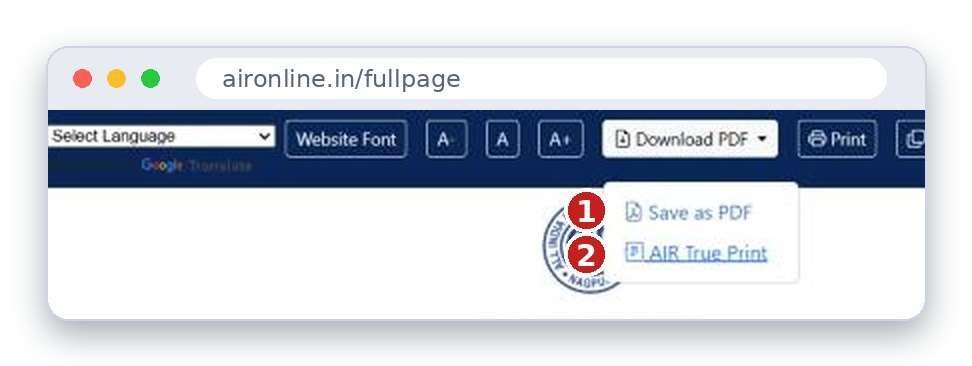
- Save as PDF. Saves the judgment as a PDF file on your device.
- AIR True Print. Opens the judgment in the print-style layout of the AIR reports.
AI Insights: a short summary of a judgment
AI Insights gives a quick, issue-by-issue summary so you can decide whether a long judgment is worth reading in full.
- Open any judgment.
- Click AI Insights at the top right of the toolbar.
- A panel slides in on the right. Scroll through it, one issue at a time.
- Click the small arrow at the top of the panel to close it.
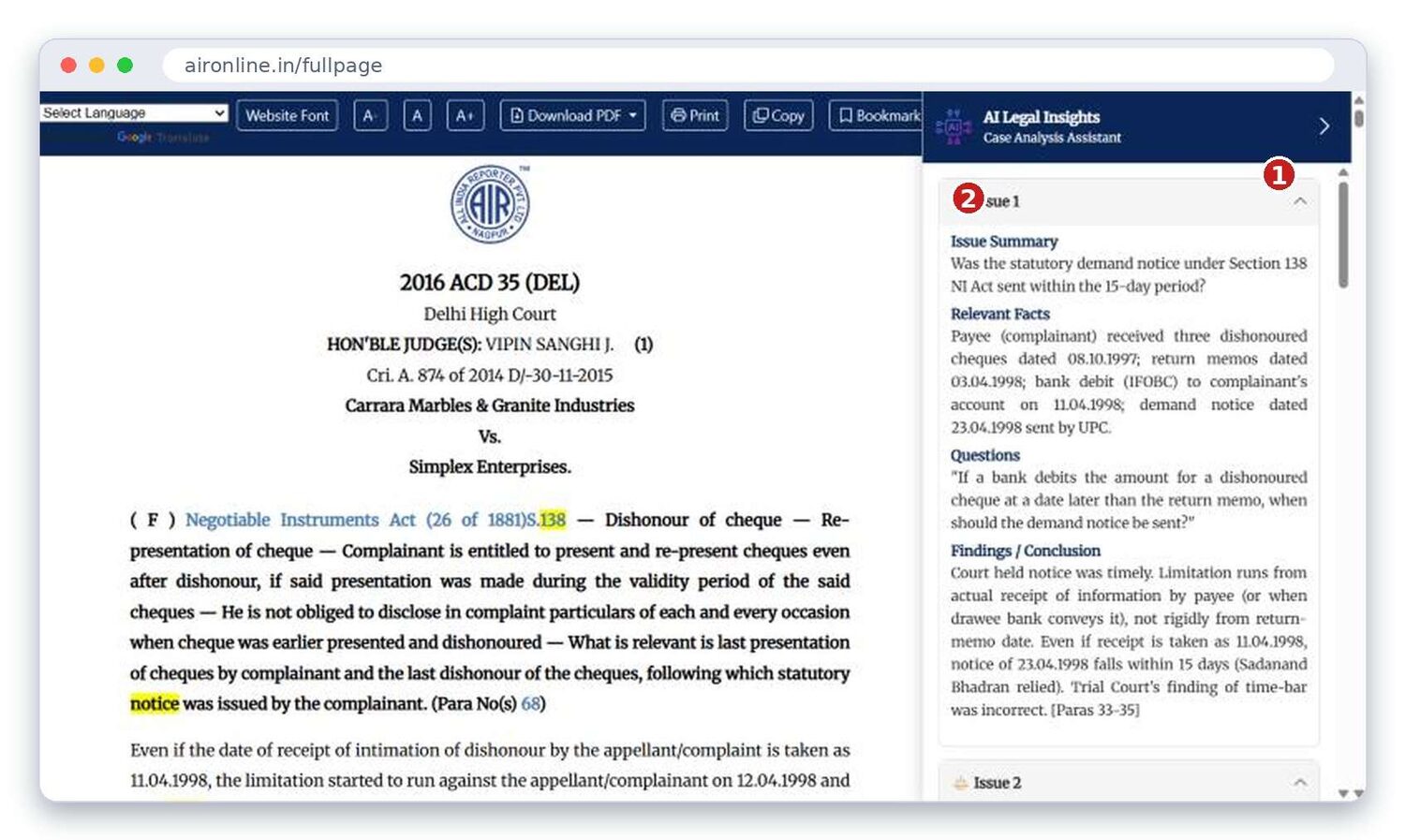
- AI Insights button. Opens and closes the panel.
- An issue. Each issue shows a summary, the relevant facts, the questions, and the findings. Paragraph numbers are given in square brackets, such as [Paras 33-35].
AI Insights is generated by a machine to help you read faster. It is not a substitute for the judgment. Open the paragraphs it points to before you rely on a point.
The home-screen tools, one by one
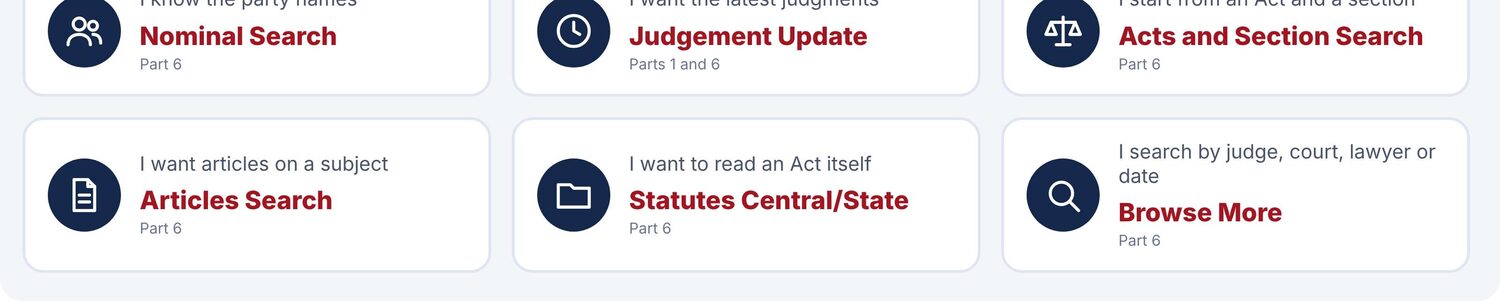
Below the search box on the home page sit eight tiles. Each one opens a different tool. This part walks through them in the same order, with one screen each.
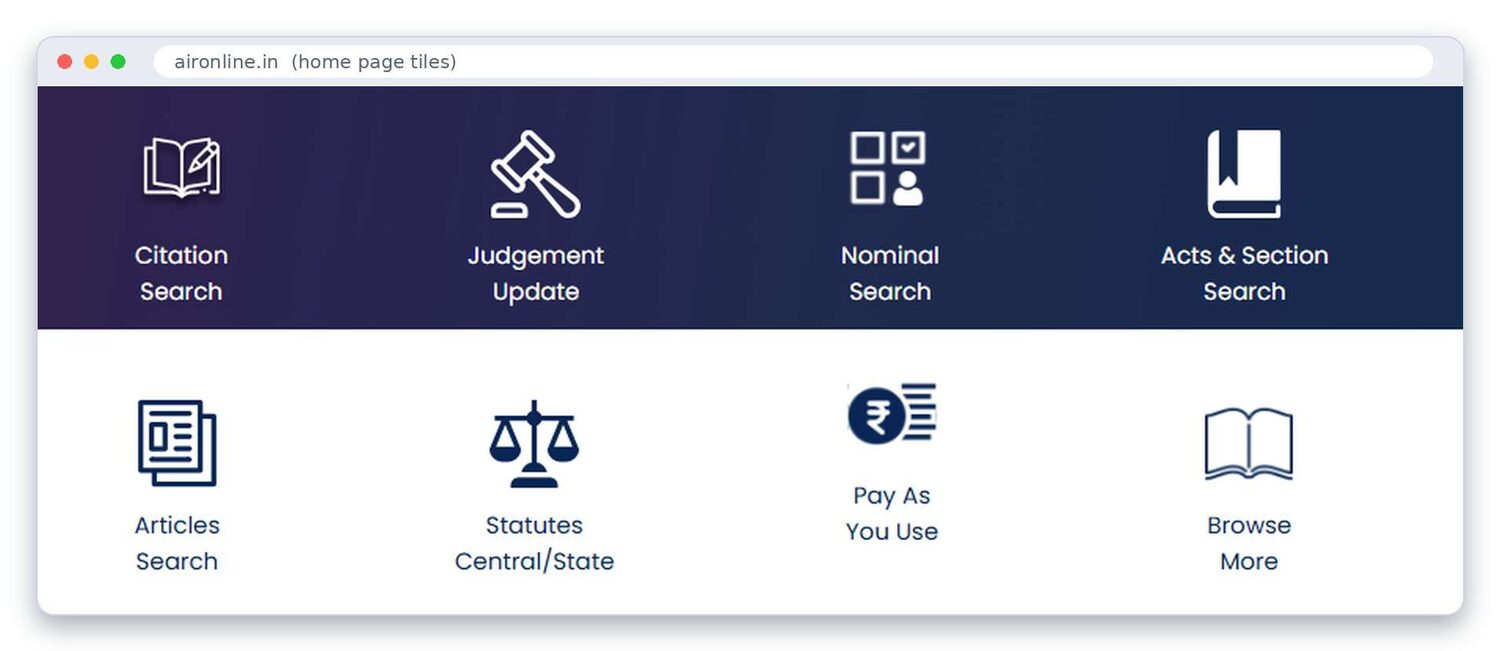
| Tile | What it is for | Section |
|---|---|---|
| Citation Search | Open a case from its report, year and page. | 6.1 |
| Judgement Update | See the newest judgments of a court. | 6.2 |
| Nominal Search | Find a case from the names of the parties. | 6.3 |
| Acts & Section Search | Start from an Act and section, then see the cases on it. | 6.4 |
| Articles Search | Find articles by title, author or keyword. | 6.5 |
| Statutes Central/State | Read the text of Central and State Acts. | 6.6 |
| Pay As You Use | Pay-per-use access (see the note in 6.7). | 6.7 |
| Browse More | Opens the rest of the searches: date, bench, court, judge, lawyer. | 6.8 |
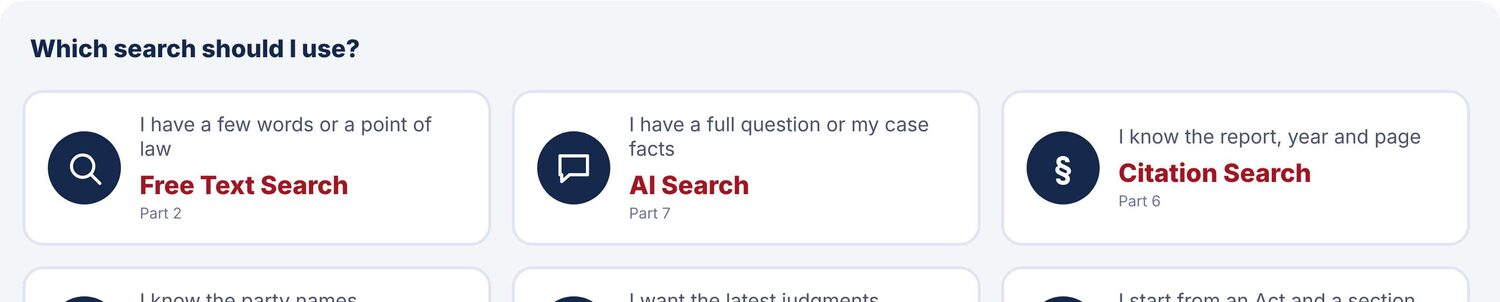
6.1 Citation Search
Use it when you already know the report and the page, for example from an opponent's list of authorities.
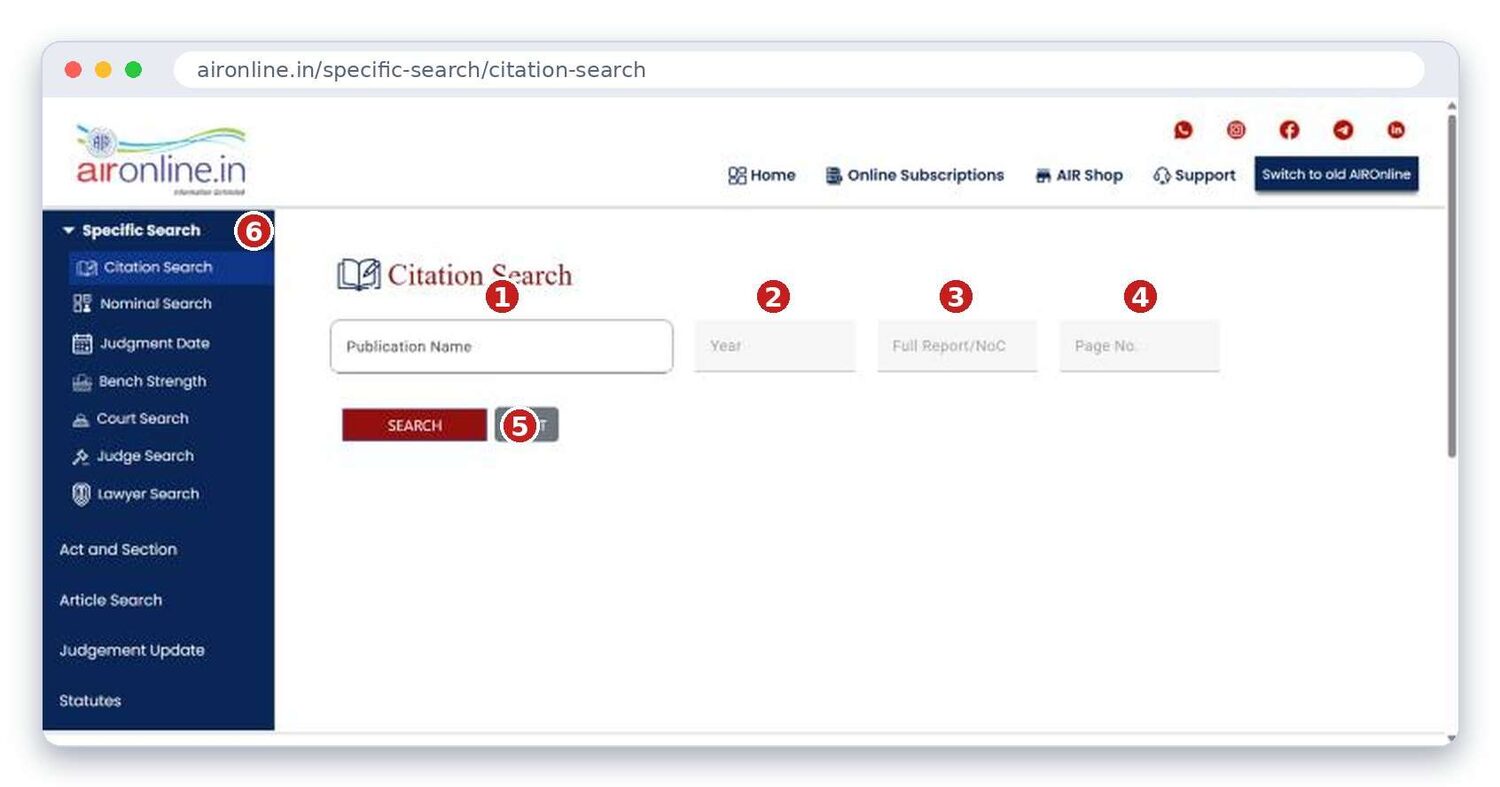
- Publication Name. Pick the report series, such as AIR or AIROnline.
- Year. The year of the report.
- Full Report / NoC. The report section, or the neutral citation number.
- Page No. The first page of the report.
- Search. Click it to open the case. Use Reset to clear the form.
- Side menu. Switch between the different searches without going back to the home page.
6.2 Judgement Update
This is the "what was decided lately" page. Pick a court and the newest judgments of that court are listed, each with its citation, the judges and a short note on the point decided.
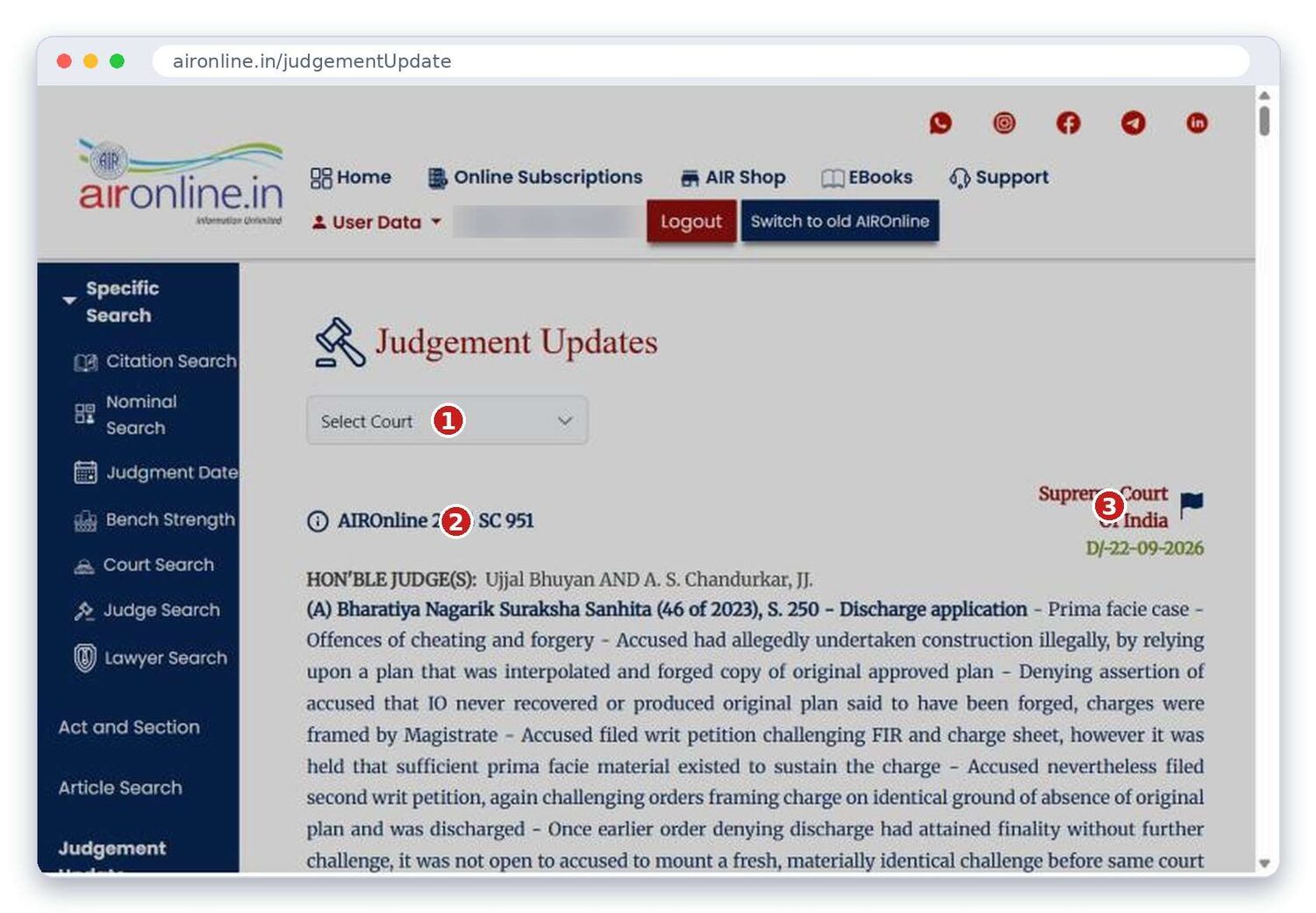
- Select Court. Choose the Supreme Court or a High Court from the list.
- Citation and judges. The AIROnline citation, then the judges who sat on the case.
- Court and date. Which court decided it, and on what date (D/ means date of decision).
Scroll down for older judgments. Click a case to open the full judgment.
6.3 Nominal Search
Use it when you remember who the parties were but not the citation. Type a name (or part of one) and the matching cases appear in a table, with your word highlighted in yellow.
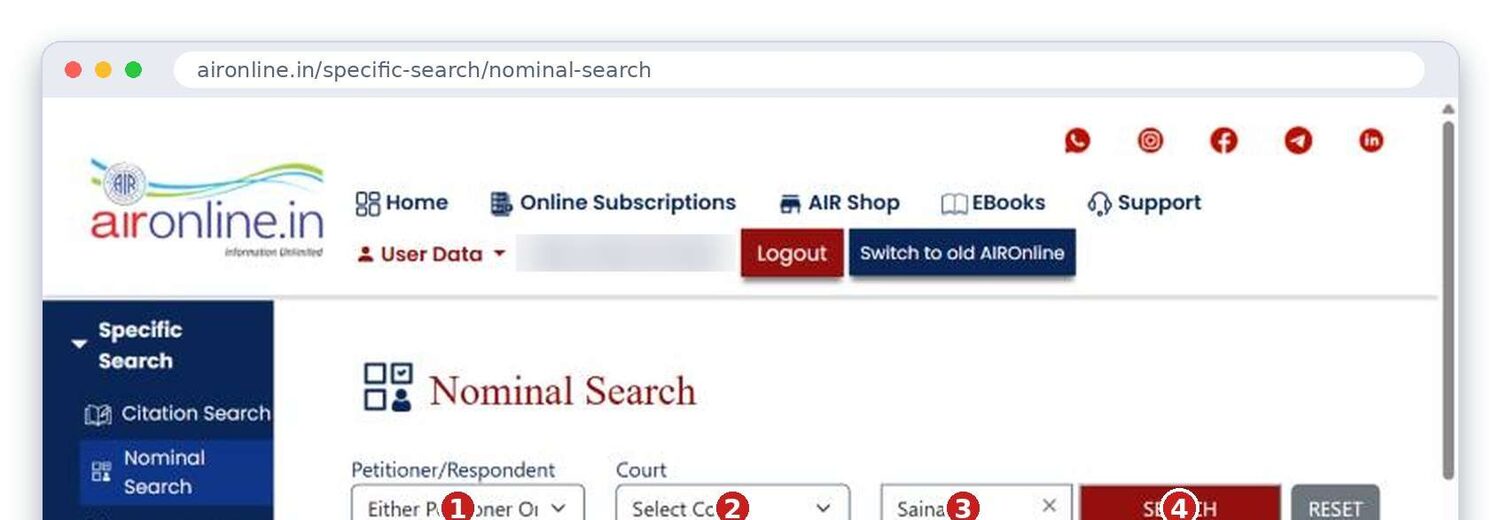
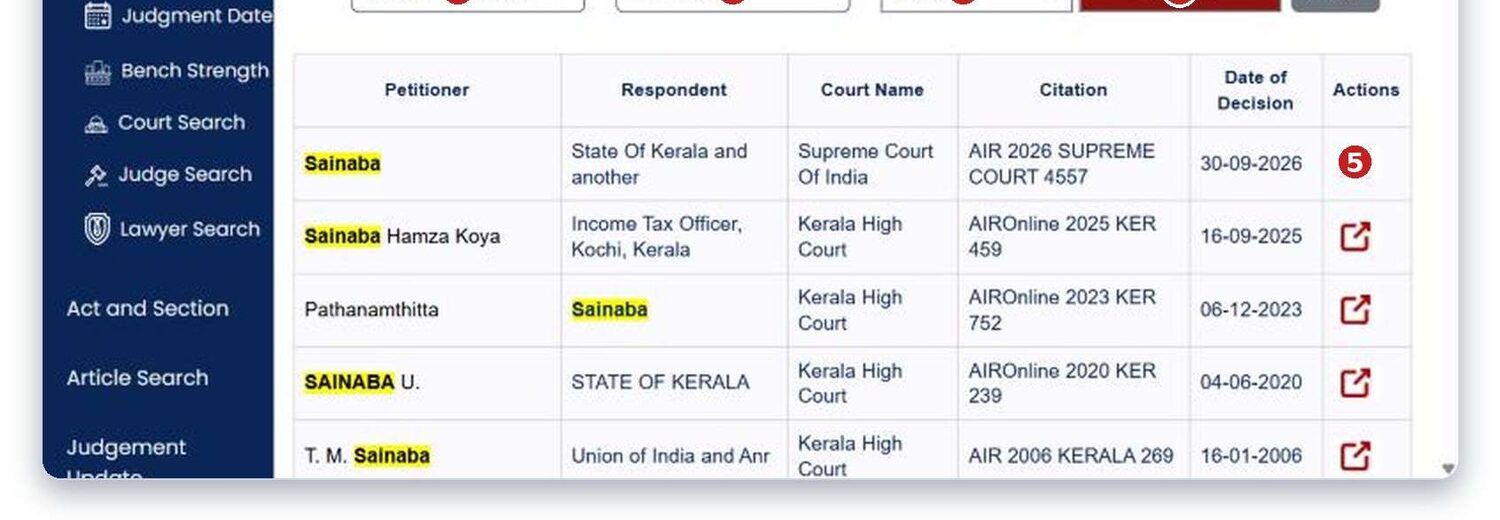
- Petitioner/Respondent. Choose whether the name is the petitioner, the respondent, or either.
- Court. Narrow to one court, or leave it on Select Court to search all.
- Search box. Type the party name.
- SEARCH. Run the search. RESET clears the form.
- Actions. The small arrow icon opens that case.
Type just one distinctive word, such as a surname. A short name finds more than a long one, and you can narrow the list by court afterwards.
6.4 Acts & Section Search
Use it to find every case that talks about a particular section of an Act.
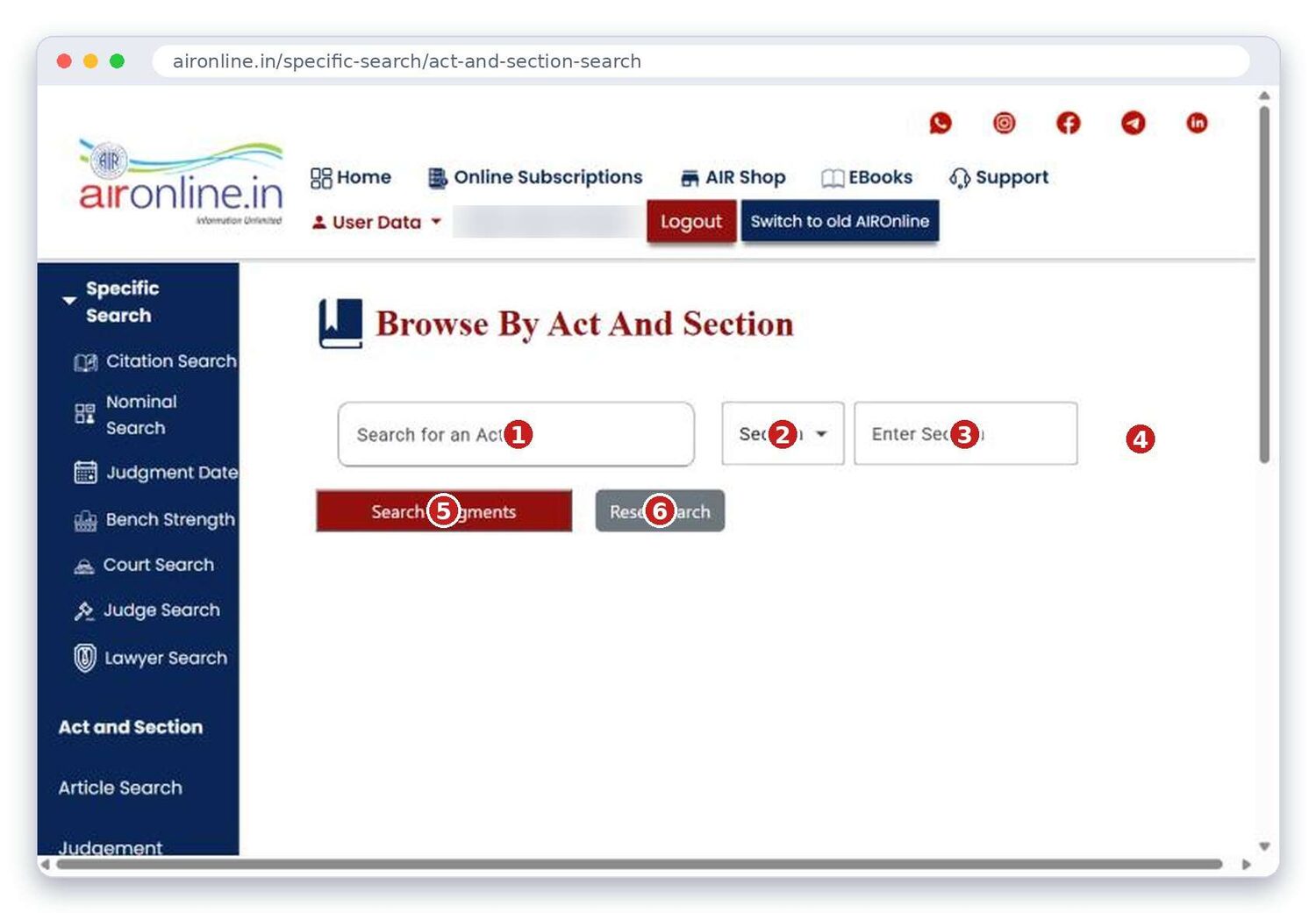
- Search for an Act. Start typing the Act's name. A list of suggestions appears.
- Section. Choose the kind of provision (Section, Rule and so on).
- Enter Section. Type the number, for example 302.
- The + button. Adds another Act and section, if you want cases that cover more than one.
- Search Judgments. Shows the cases.
- Reset Search. Clears everything so you can start again.
You most likely typed the Act's name but did not pick it. Click the Act from the suggestion list that appears under the box, then fill in the section and search again.
6.5 Articles Search
AIR publishes articles by judges and writers. This tool finds them. Type a subject in the big box, or use the three filters under it.
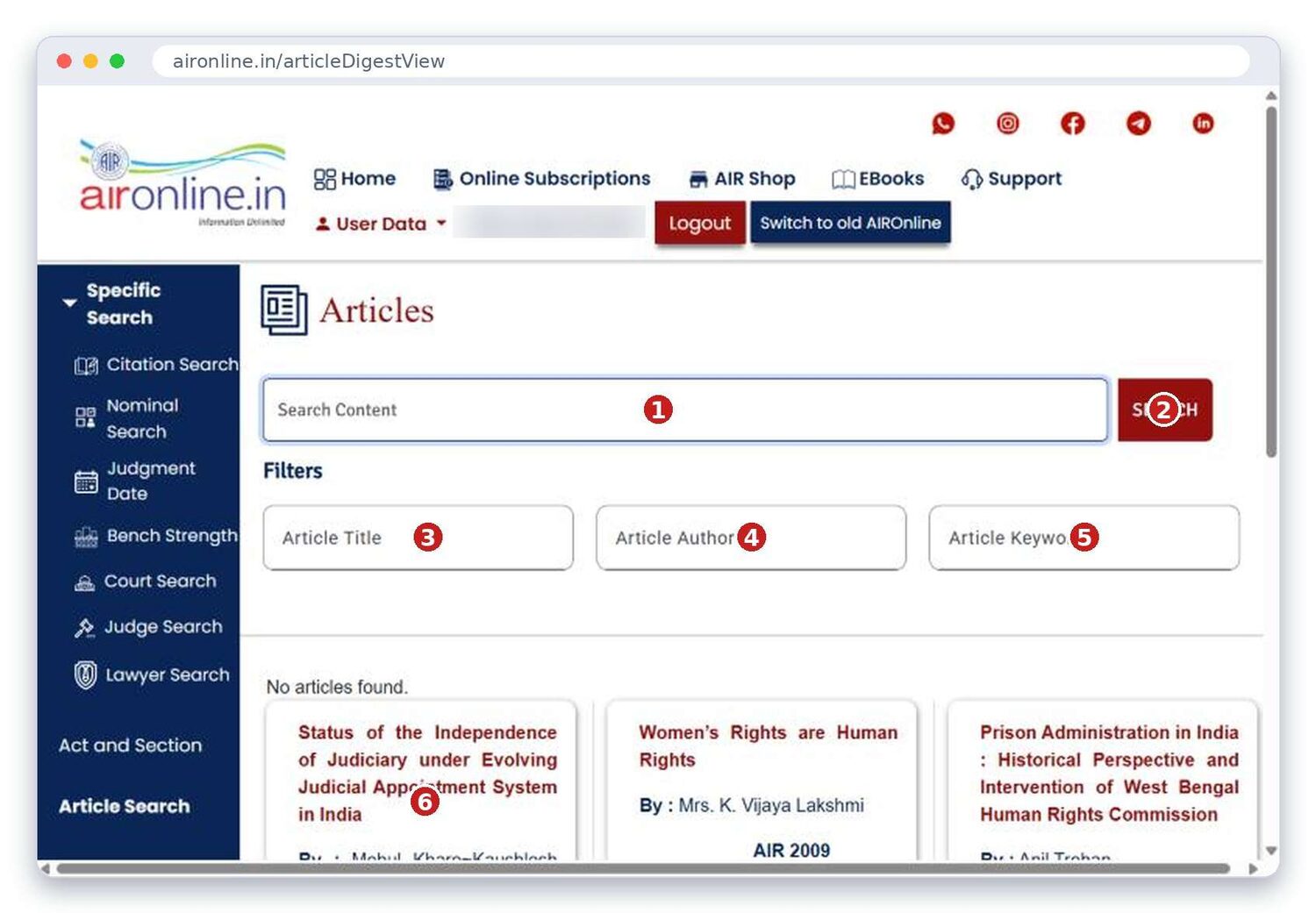
- Search Content. Type a word or phrase to look for inside the articles.
- SEARCH. Run the search.
- Article Title. Filter by words in the title.
- Article Author. Filter by the author's name.
- Article Keywords. Filter by a subject keyword.
- Article cards. Each card shows the title, the author and the year of the AIR volume. Click one to read it.
6.6 Statutes Central/State
This is a library of Acts. Type the Act's name into the Search Statutes box and pick it from the list to open it.
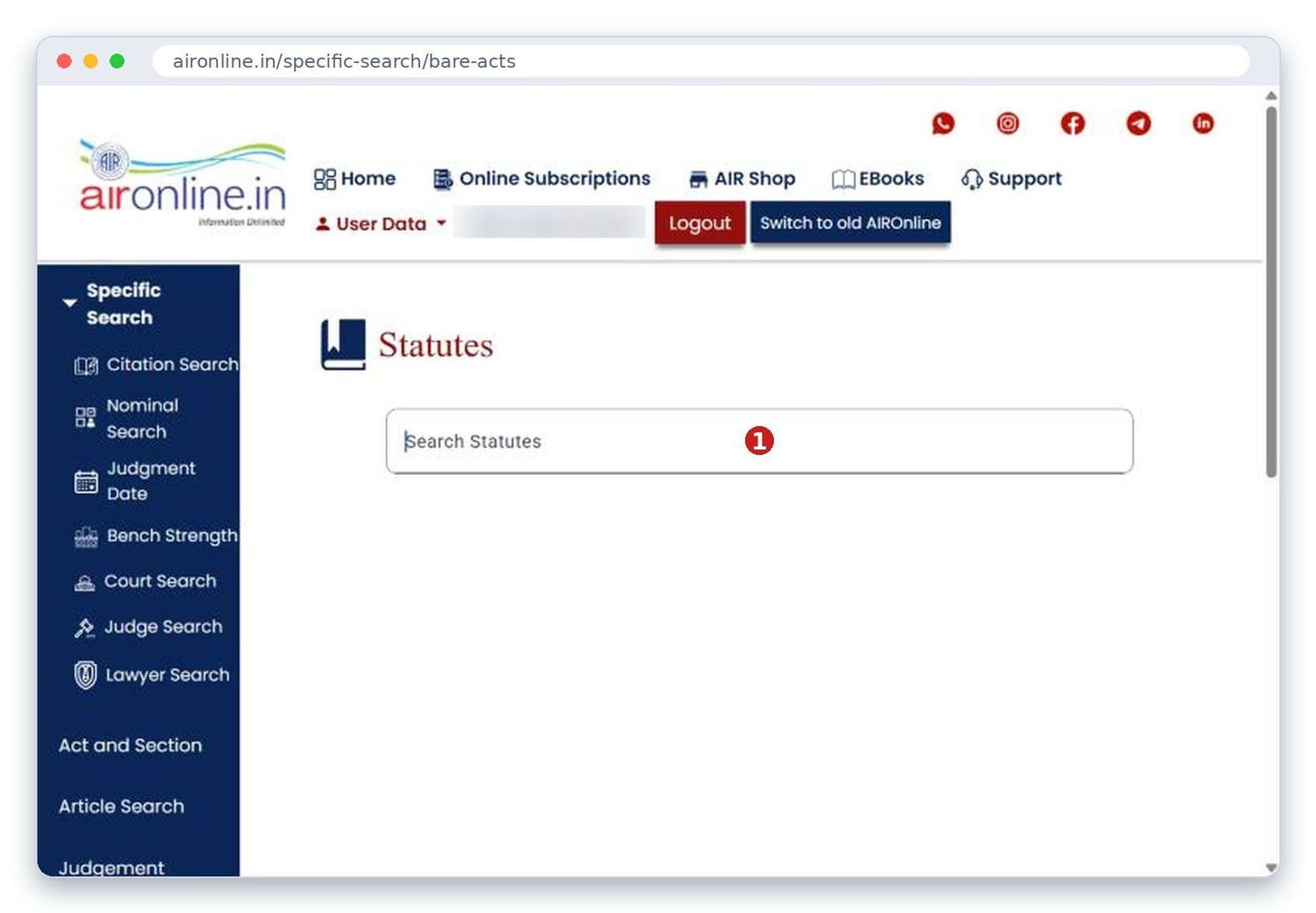
- Search Statutes. Type the name of the Act, for example "Bharatiya Nyaya Sanhita".
The Act opens on its own page, with the full text. The new criminal codes show a helpful note under each section, such as "Corresponding Section: S. 38 of Indian Penal Code, 1860", so you can move between the old and new numbering. Some sections also carry "Object and Reason" from the Bill.
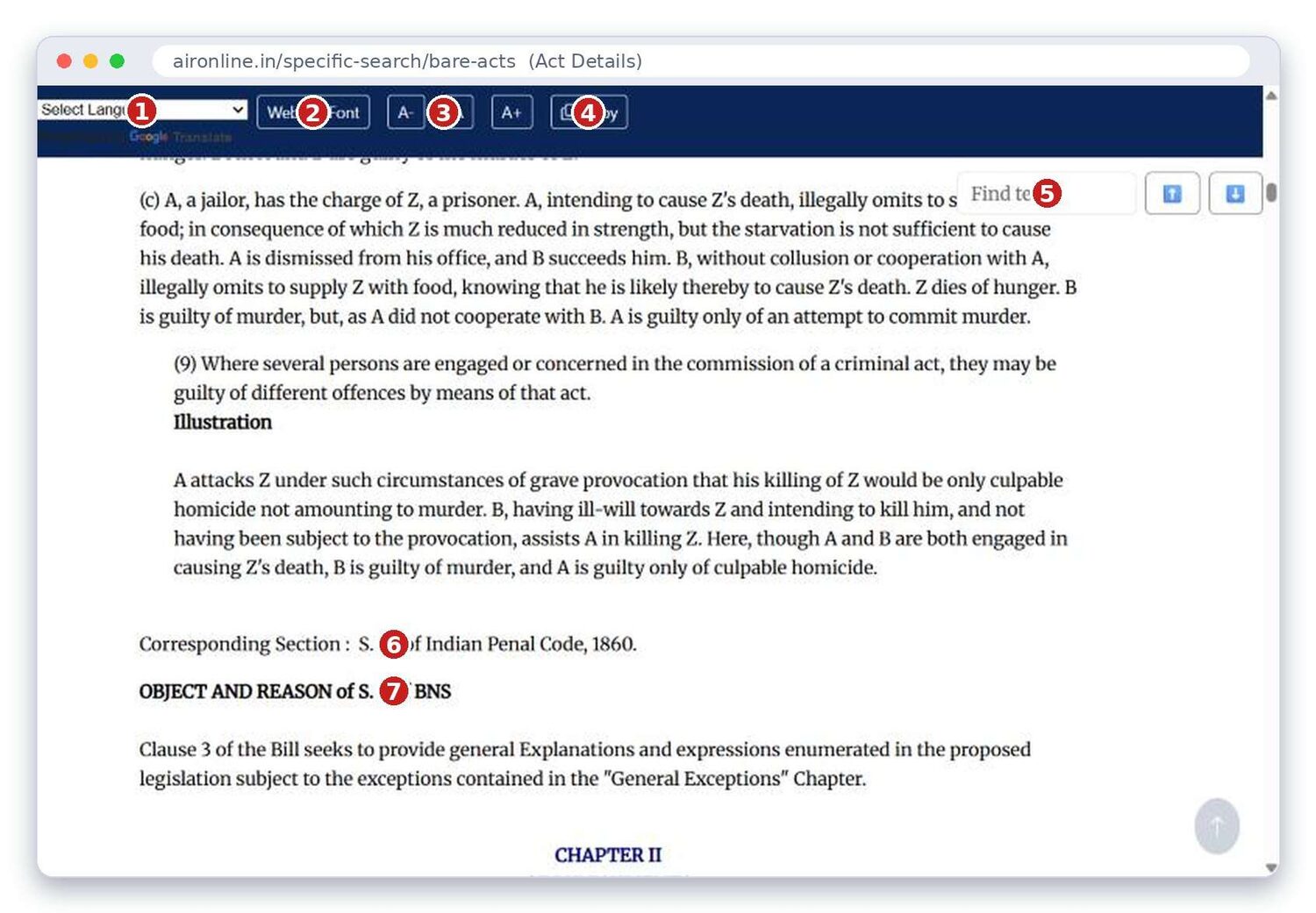
- Select Language. Translate the page.
- Website Font. Change the font style.
- A- A A+. Make the text smaller or larger.
- Copy. Copy the text you have selected.
- Find text. Type a word to jump to it inside the Act. The two arrows move to the previous or next match.
- Corresponding Section. Shows where the old law's section now sits (or the reverse).
- Object and Reason. The Bill's own explanation for the section.
6.7 Pay As You Use
The tile has a rupee symbol, and the name suggests access that you pay for as you go instead of through a full subscription.
This tile did not appear in the account used to prepare the screens, so there is no screen for it and its exact rules could not be checked. Ask AIR, or look under Online Subscriptions or Support, for the current charges and what each payment unlocks.
6.8 Browse More
Browse More opens a page of big tiles. They are the same searches that sit in the side menu on every tool page. Citation Search and Nominal Search are the first two (see 6.1 and 6.3). The rest are below.
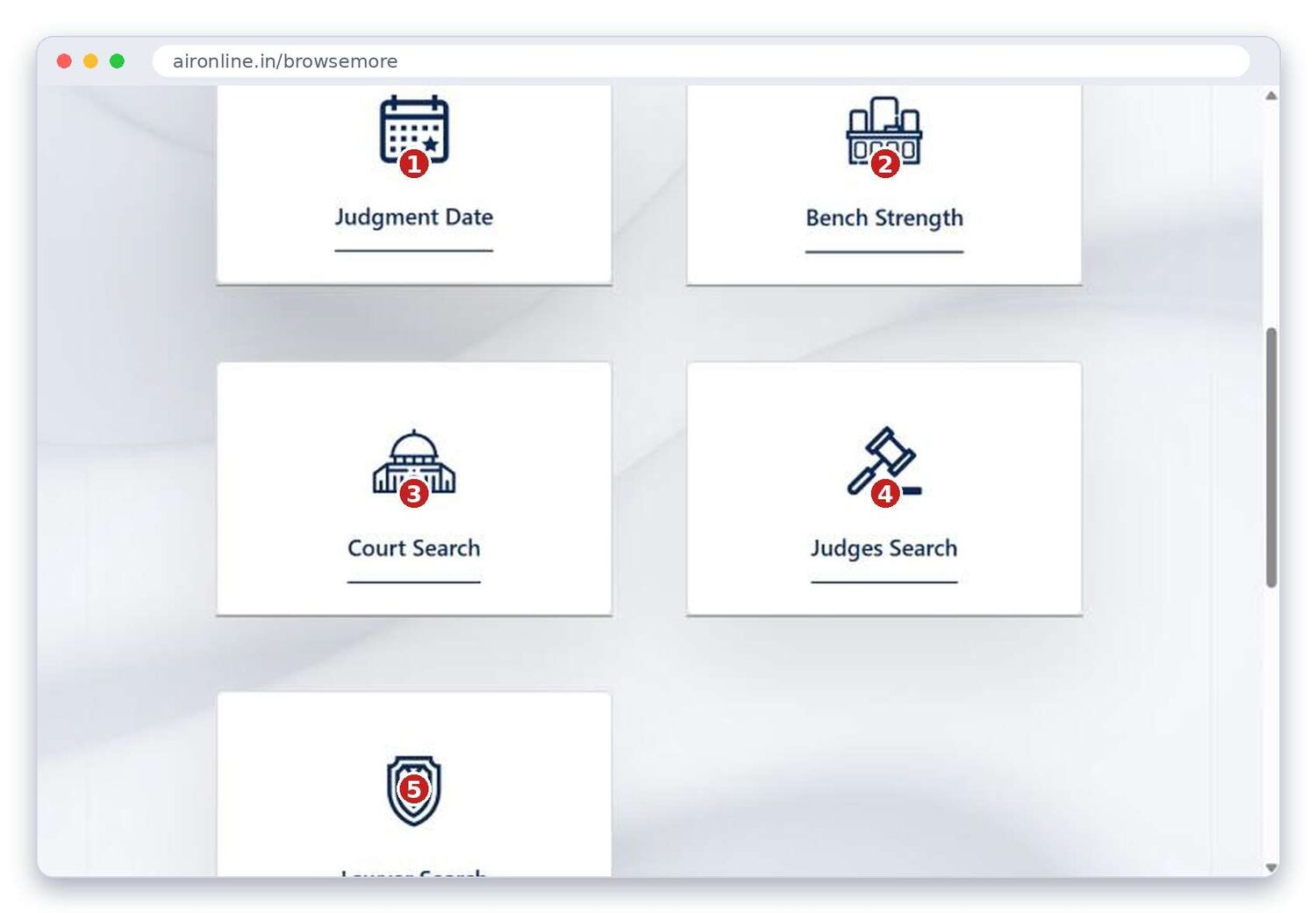
- Judgment Date. Find cases decided on a particular date.
- Bench Strength. Find cases by the number of judges on the bench.
- Court Search. Look through the cases of one court.
- Judges Search. Look through the cases of one judge.
- Lawyer Search. Find cases in which a particular lawyer appeared.
Once you are on any of these pages, use the dark menu on the left to jump to another search. You do not have to go back to the home page each time.
Fill in only what you know on each form, then click Search. A year and a page number alone can be enough on Citation Search.
AI Search: ask a question in plain words
AI Search is for the times when you know your question or your facts, but not the right keywords. It reads the meaning behind your words and then fetches matching headnotes, judgments and precedents from the AIR database. It opens on its own page, called AIR AI.


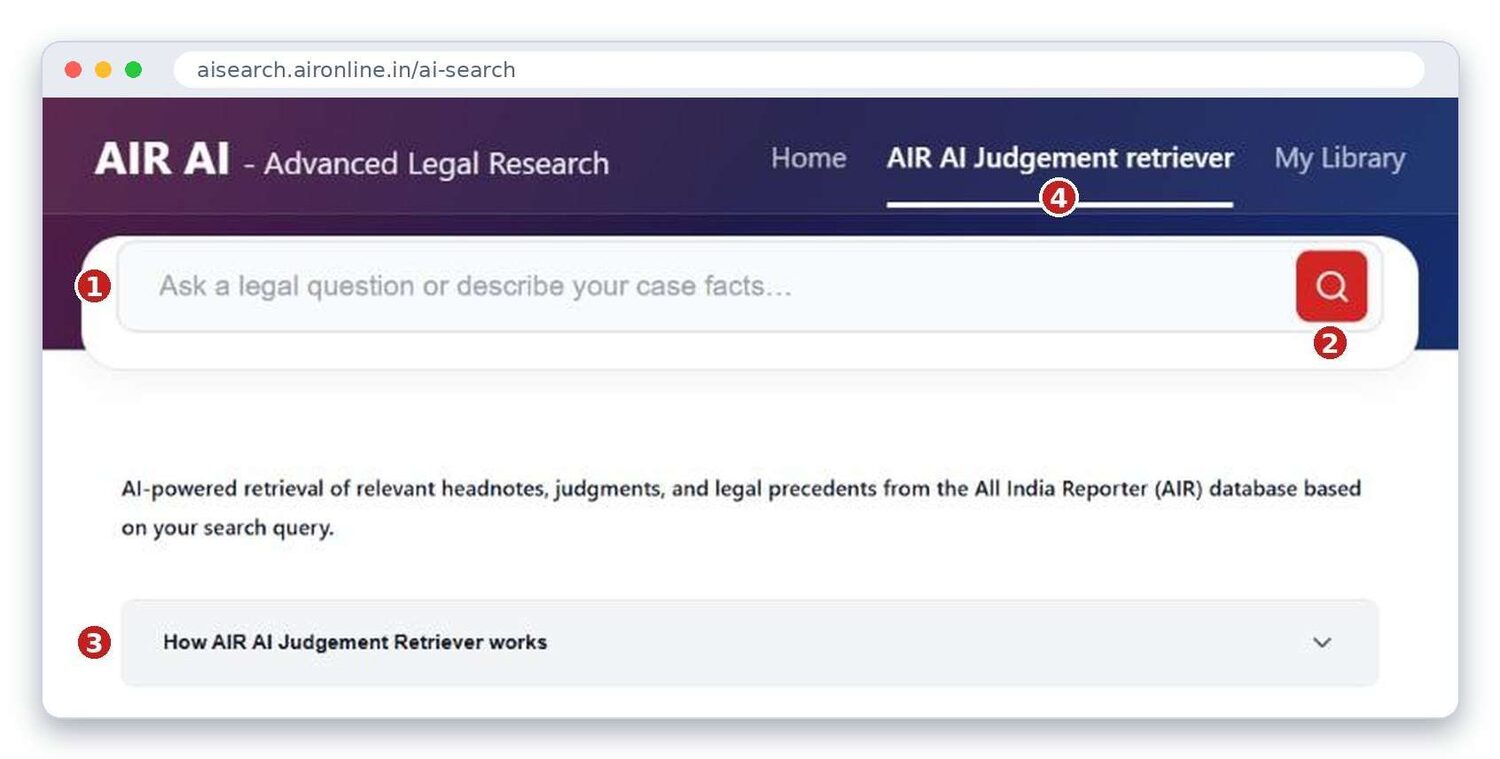
Opening AI Search
Click the AI icon in the home search box, or the AI Search tile. The page opens in a new tab. Stay in that tab.
- Question box. Type a legal question, or describe your case facts, in your own words.
- Search button. Click it, or press Enter.
- How AIR AI Judgement Retriever works. Click it to open a three-line explanation.
- Top menu. Home goes back to the start, AIR AI Judgement retriever is the search page, and My Library holds the judgments you save.
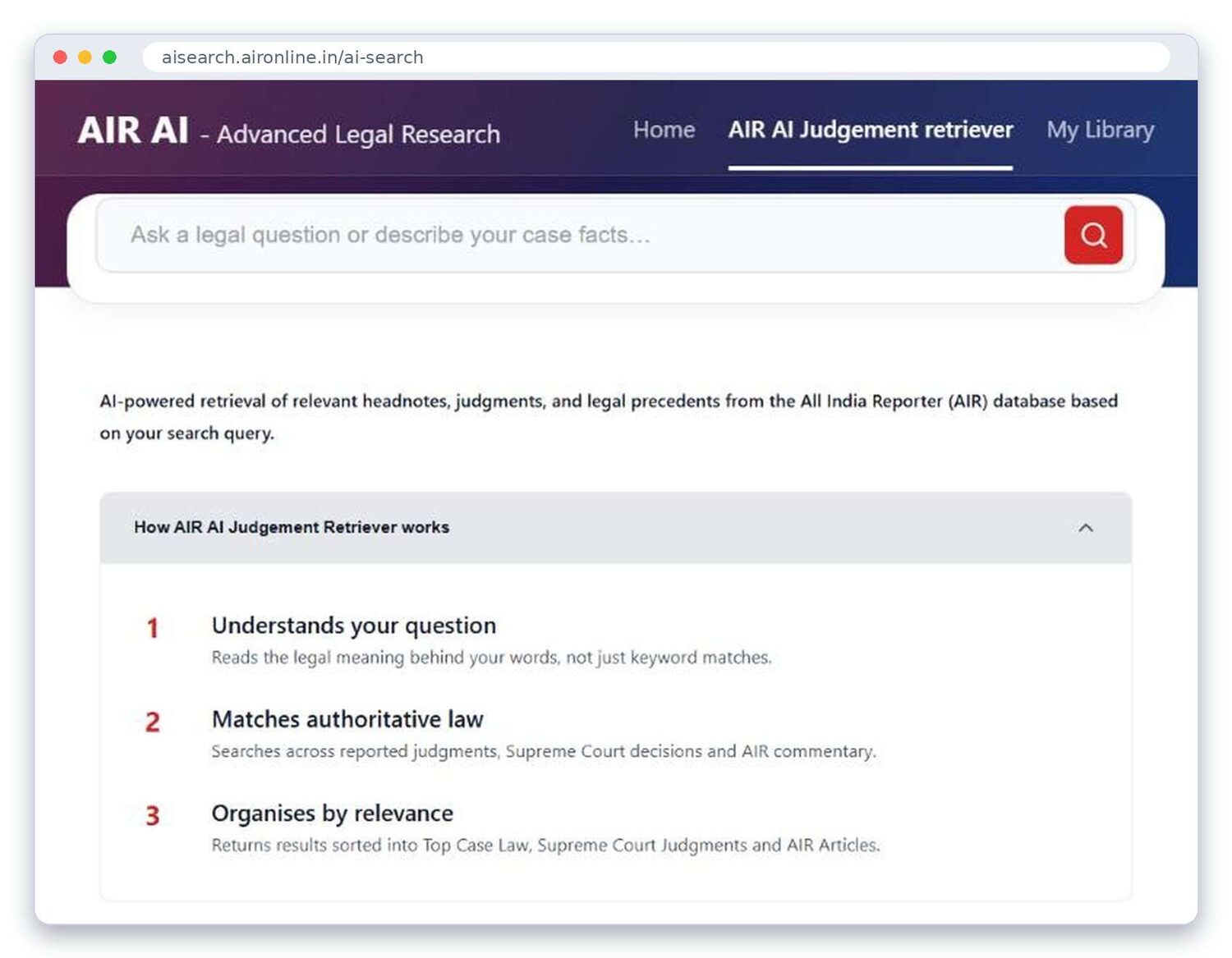
In short: it understands your question, matches authoritative law (reported judgments, Supreme Court decisions and AIR commentary), and organises the results by relevance into Top Case Law, Supreme Court Judgments and AIR Articles.
Asking a good question
- Click the question box.
- Write one clear question, or the facts of your case. For example: Is a Section 138 NI Act demand notice valid if it was served on the accused's mother?
- Click the red search button.
- Wait. AI Search first shows its working, then the results. The page shows how long the search took when it finishes (about 26 seconds in our test), but results can take longer to appear. A status line near the bottom of the page reads "Searching linked cases" while it works.
One question at a time works best. Mention the Act and section if you know them, and say who did what in a few words, as in the example.
Step 1: the questions AI Search wrote
Before showing results, AI Search rewrites your question into several versions, so it can look at the point from different angles. You will see them listed as Expanded Queries.
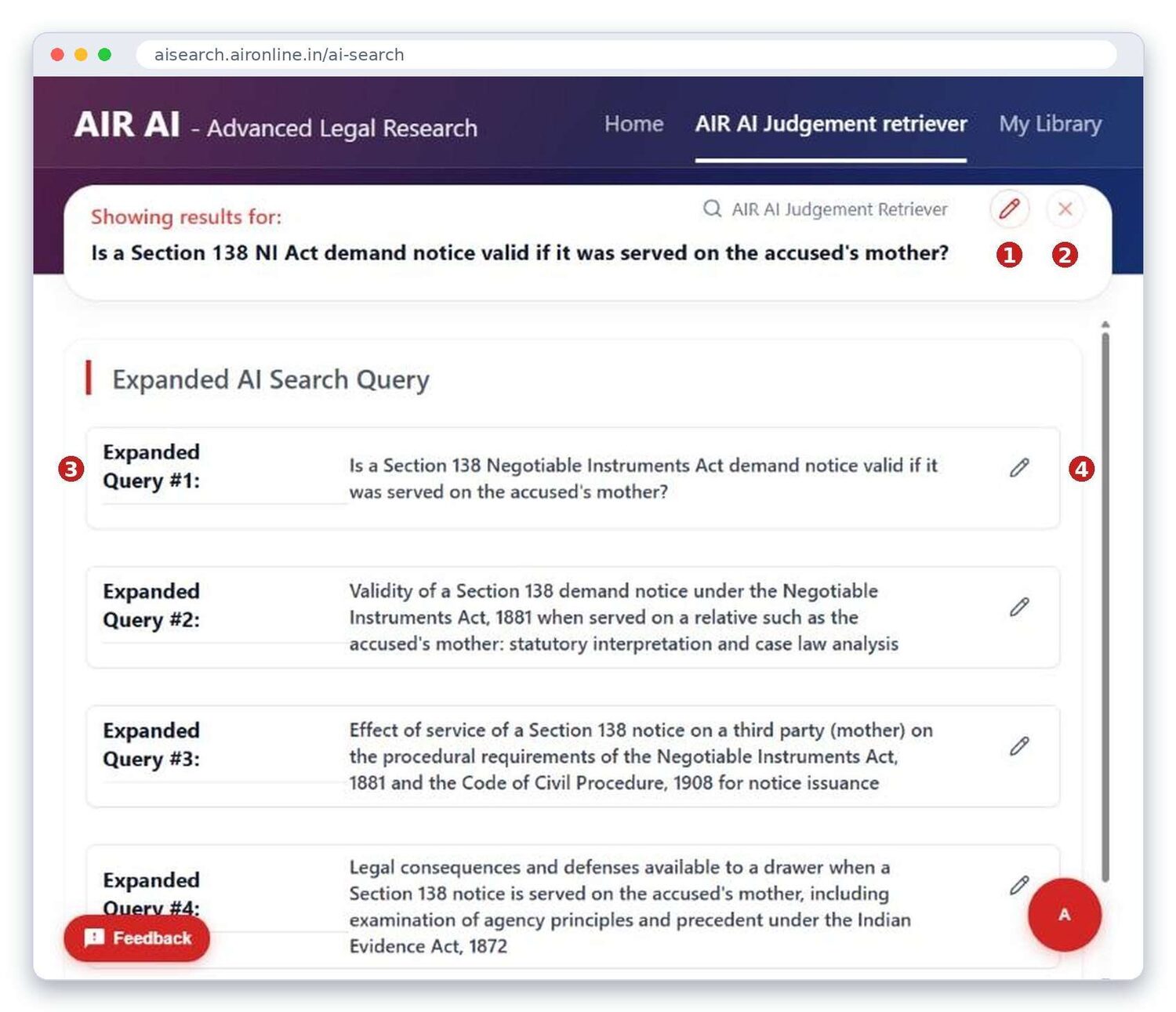
- Edit (pencil). Change your original question and run it again.
- Clear (x). Close these results and start over.
- Expanded Query. Query #1 is your own question. #2, #3 and #4 are the rewritten versions.
- Pencil on a query. Edit that one query if it has drifted from what you meant.
Step 2: the results
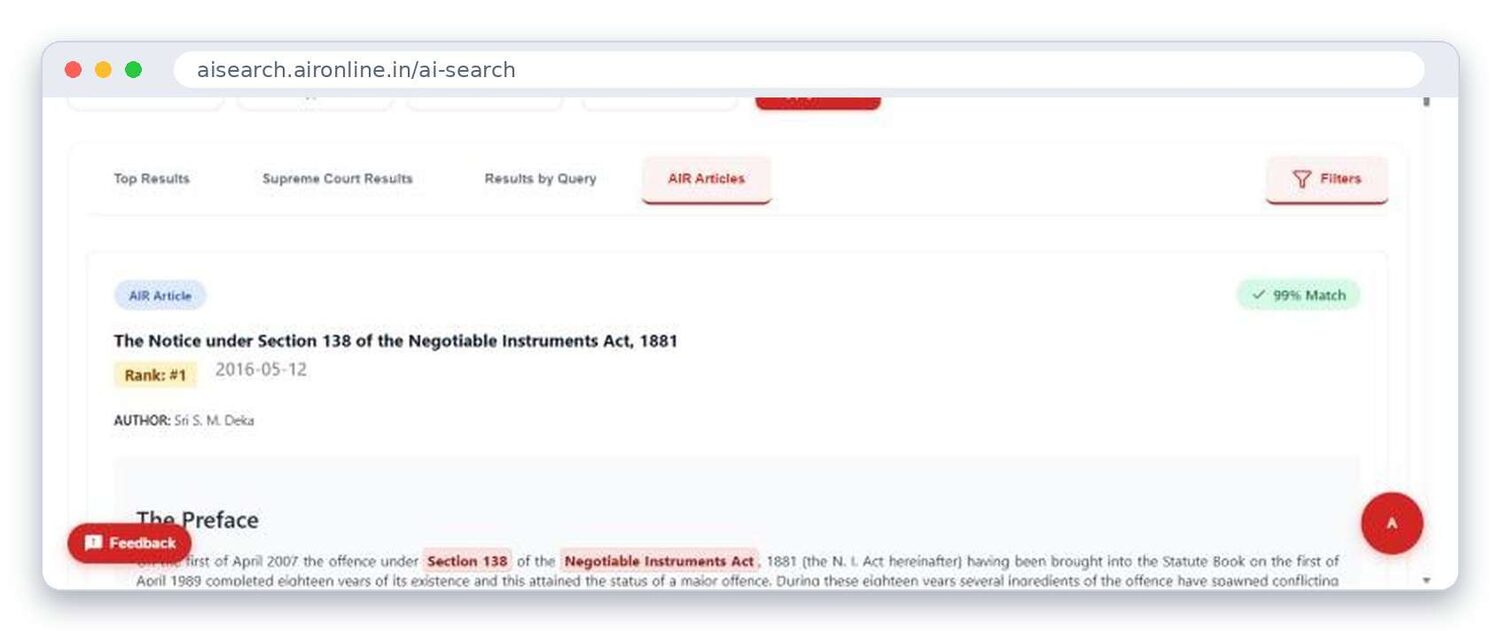
When the search finishes, the results appear with a count and the search time. Results are arranged under four tabs.
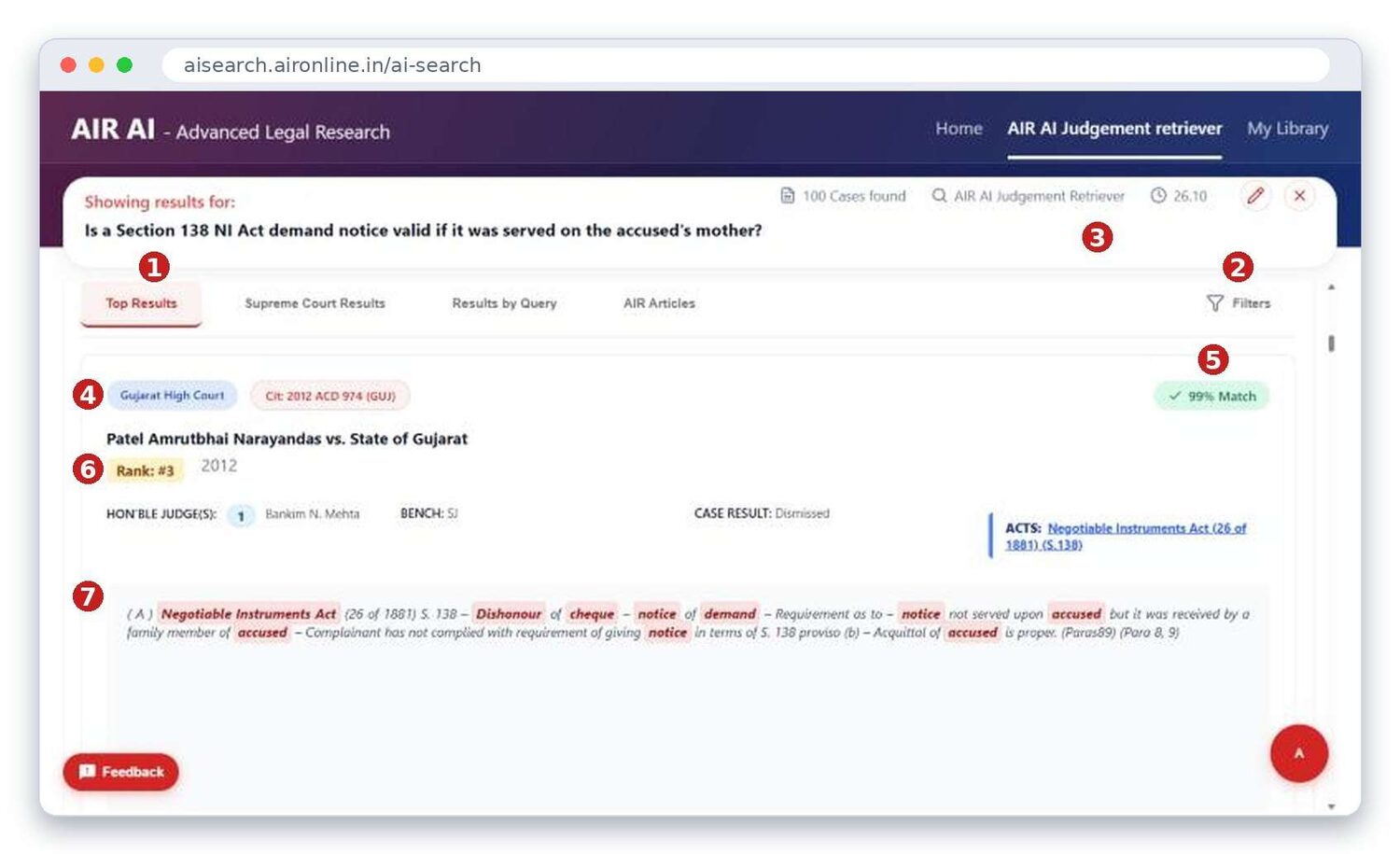
- Tabs. Top Results, Supreme Court Results, Results by Query and AIR Articles.
- Filters. Opens a row of filters (see below).
- Count and time. In this test: 100 cases found, 26.10 seconds.
- Court and citation. The blue label is the court. The red label is the citation you can quote.
- Match. How close the case is to your question, as a percentage.
- Rank. The position of the case in this list.
- Headnote. The matching headnote, with your key words marked in red. The judges, bench, case result and Act are shown above it.
What each tab shows
| Tab | What you get |
|---|---|
| Top Results | The best matches across all courts, each with a rank and a match percentage. |
| Supreme Court Results | Only Supreme Court judgments, ranked the same way. |
| Results by Query | The results for each of the questions AI Search wrote. Click Query 01, Query 02 and so on to switch. |
| AIR Articles | Articles from AIR on the subject, with author and date. |
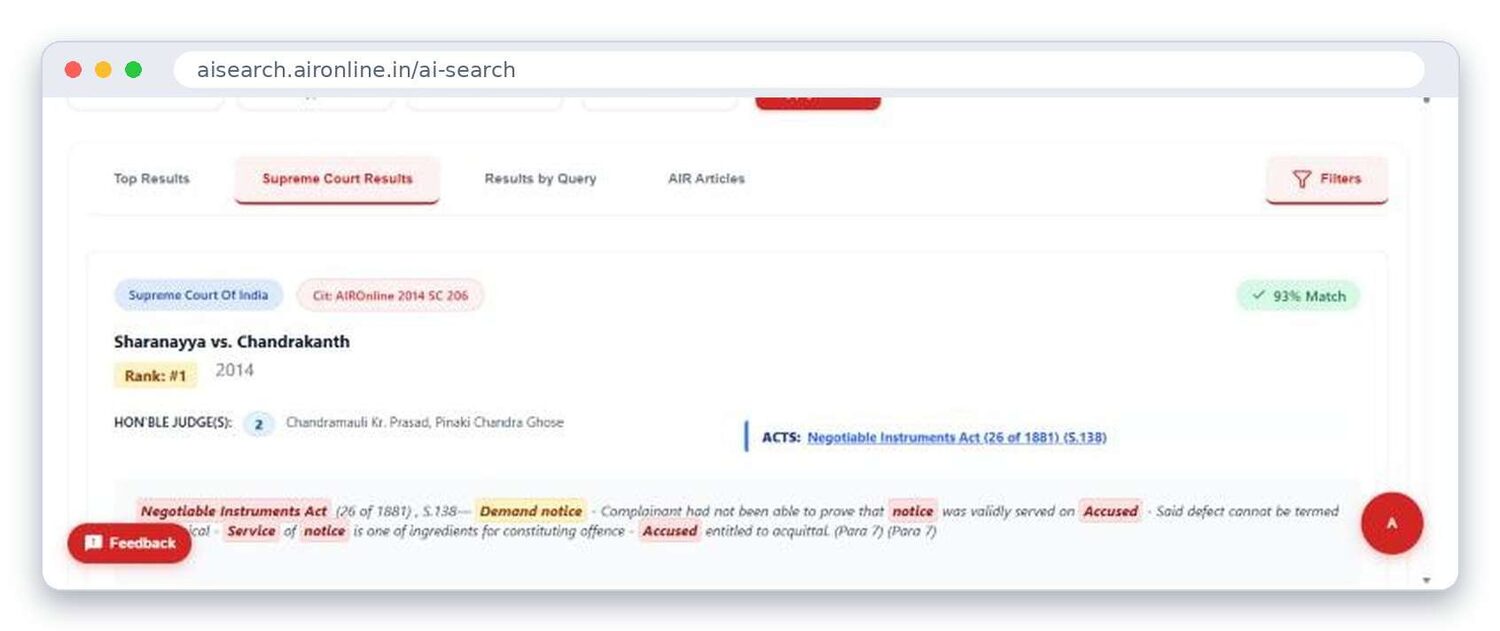
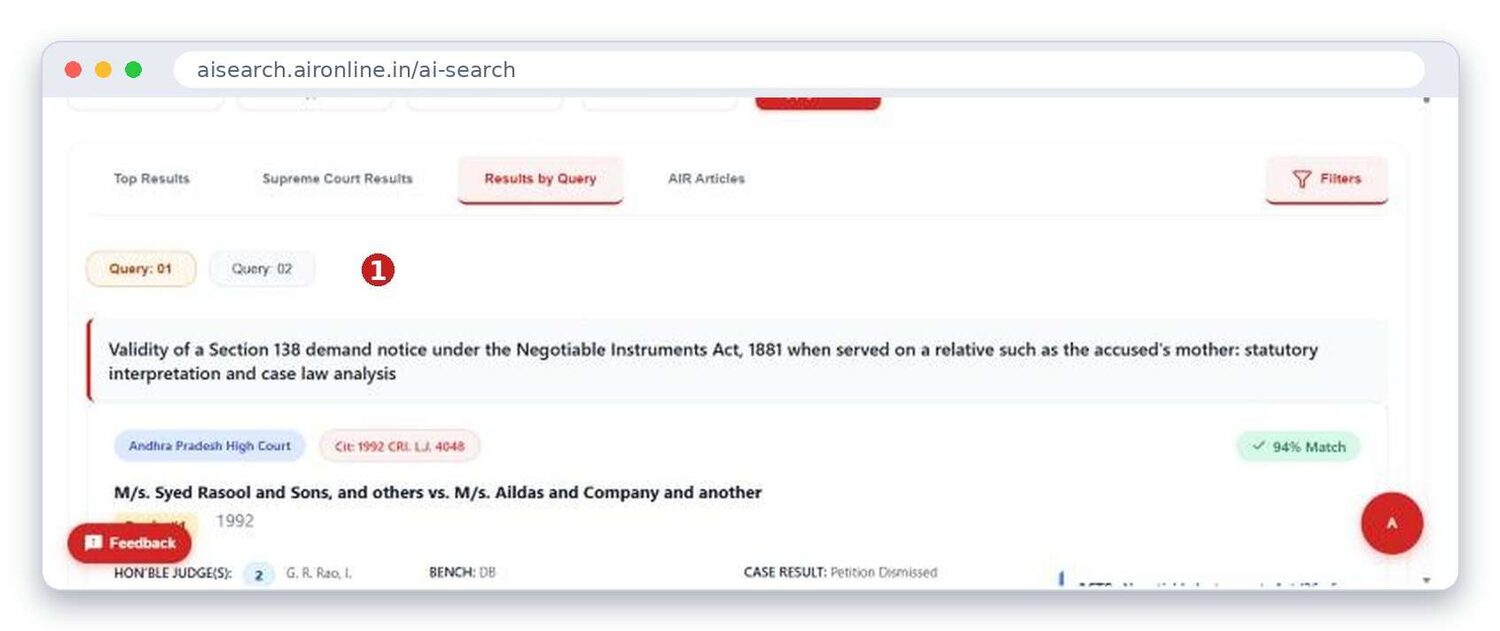
- Query buttons. Switch between the questions. The question being shown sits above its results.
Narrow the results with filters
Click Filters to open a row of choices above the tabs. Pick what you need, then click Apply Filters.
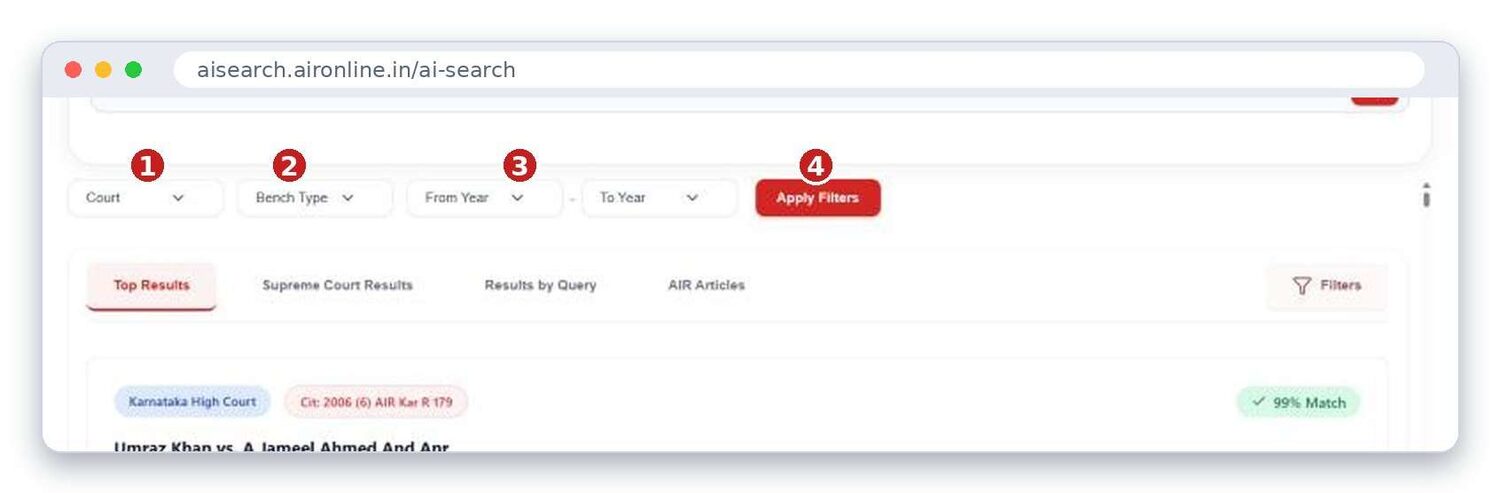
- Court. Limit the results to a court.
- Bench Type. Limit by the type of bench.
- From Year and To Year. Set a range of years.
- Apply Filters. Click to refresh the list.
Under each case: three buttons
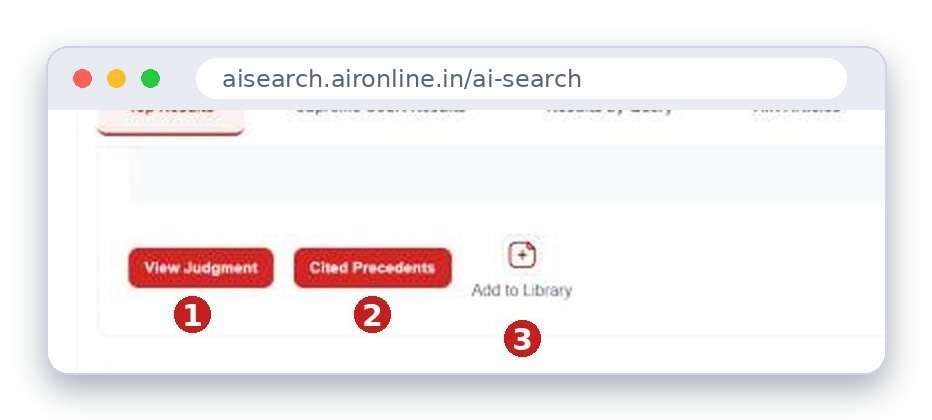
- View Judgment. Opens the judgment.
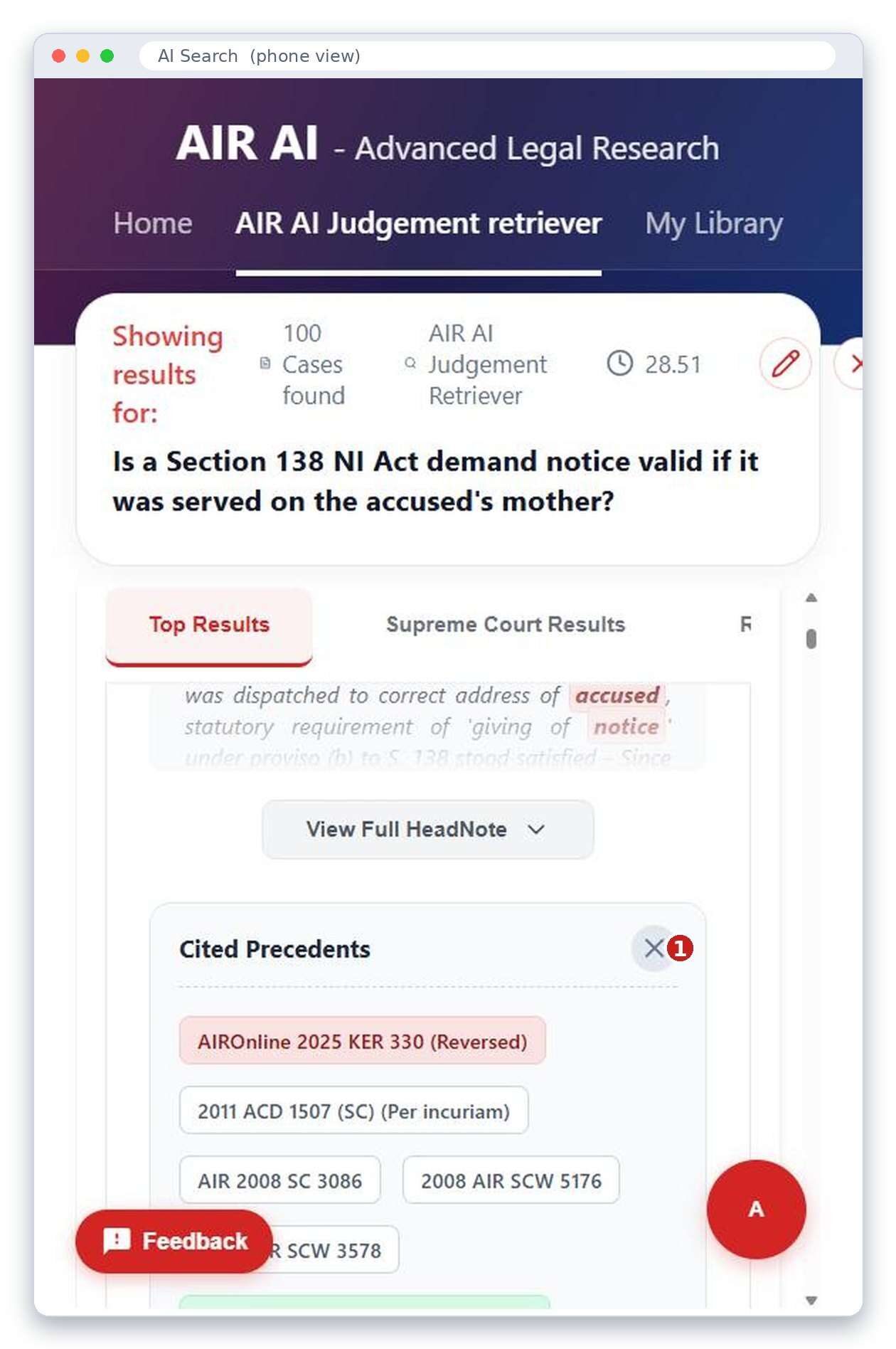
- Cited Precedents. Lists the cases that this judgment relied on. A label in brackets tells you how that case was treated with specific remarks, for example Reversed, Per incuriam or Relied on.
- Add to Library. Saves the case to your AI Search library.
Click View Full Head-Note on a card to read more than the first lines.
My Library
Click My Library in the top menu to see everything you saved with Add to Library. It is empty until you save your first case.
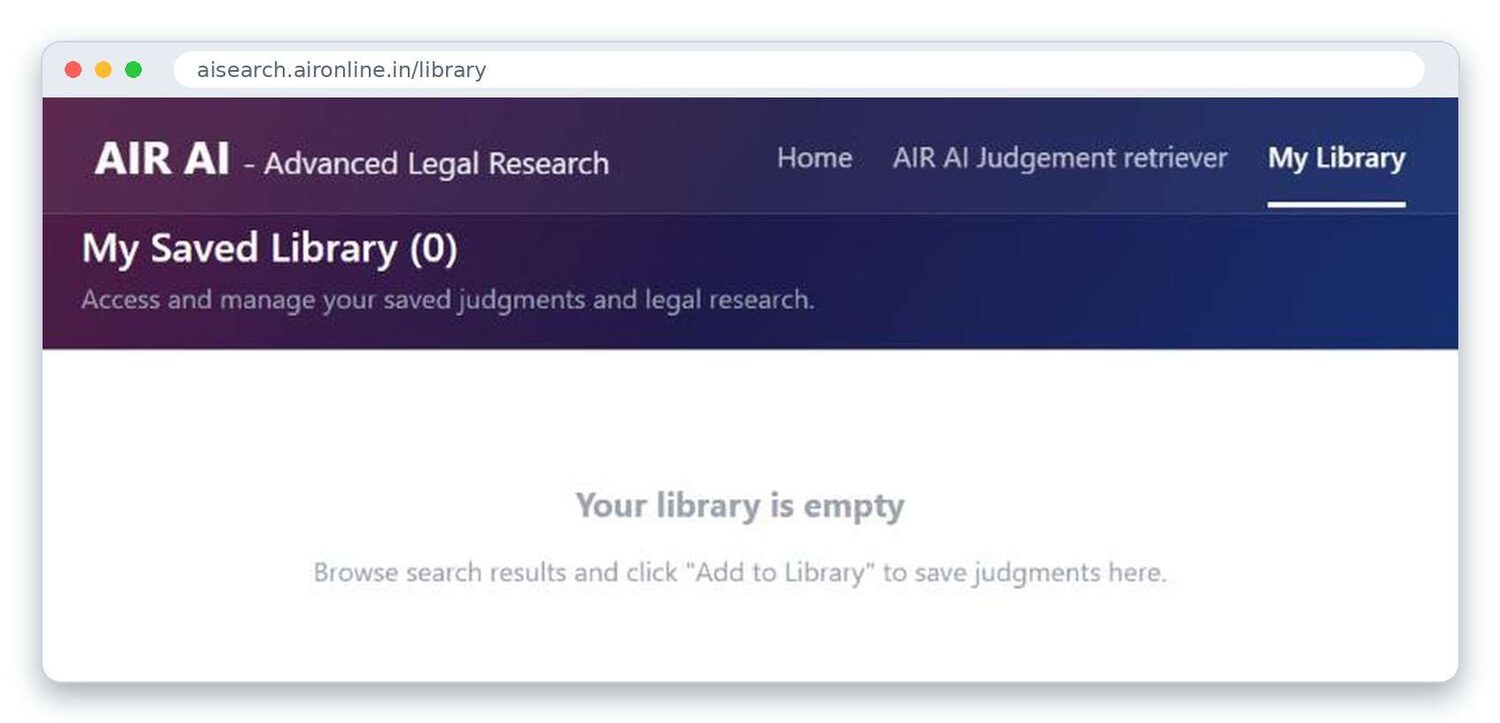
The match percentage shows how close a result is to your question. It does not tell you which case is best, and several results can show the same number. The same case can appear more than once. Open the judgment, read the paragraph, and check its later history yourself. AI Search helps you find cases. It does not replace reading them.
Your own space: bookmarks, saved searches and notes
Open the User Data menu in the top bar to reach your personal space. It has these sections:
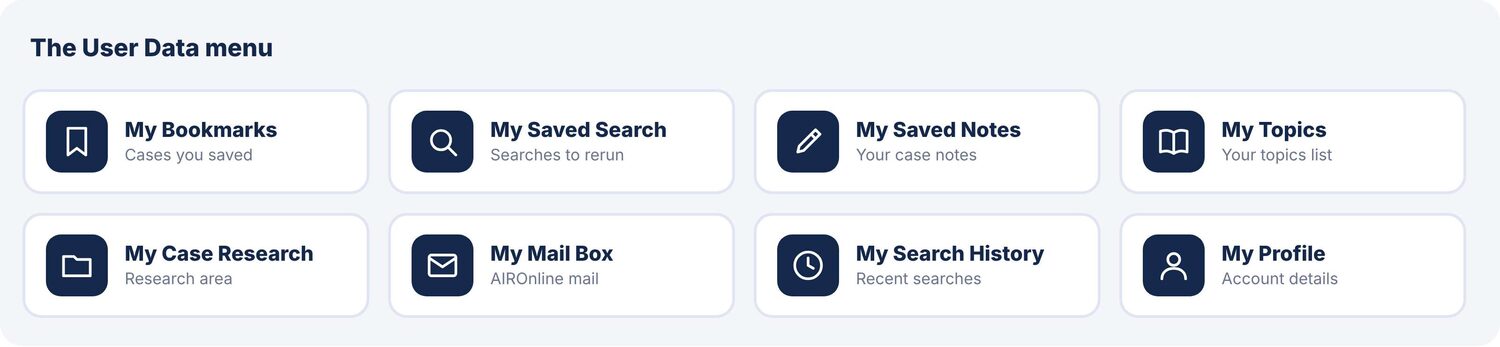
The easiest way to start is to bookmark a case you will need again. Open it, then click Bookmark in the toolbar (see Part 4). You will find it later under My Bookmarks.
The History button on the home screen shows the same recent searches. Use it for a quick repeat, and My Search History for the full list.
The menu names above come from the site's menu. This guide does not go through each of these pages step by step. If you want a walk-through of one, ask for it and it can be added.
Using AIROnline on a phone or tablet
The site adjusts itself to a smaller screen. The menu moves to the bottom of the screen, and the search tiles move below the search box.

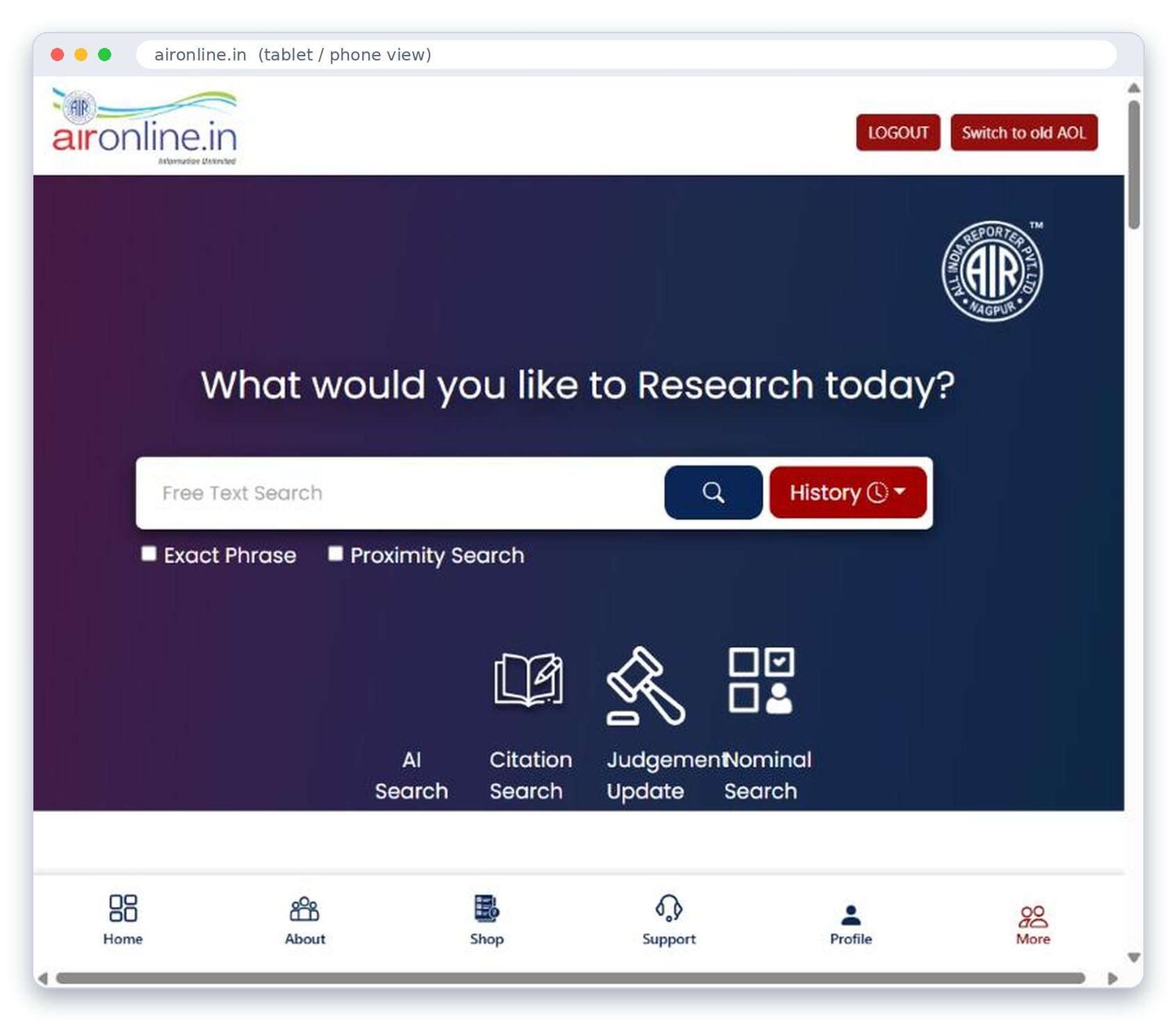
- The bottom bar has Home, About, Shop, Support, Profile and More. Other options are under More.
- On a small screen some toolbar buttons on a judgment, such as AI Insights or Equal Citation, can sit off to the side. Try turning the phone to landscape, or use a tablet or computer for those.
- Judgments open in new tabs. Close tabs you no longer need so the phone stays quick.
- The AIROnline mobile app is a separate product. This guide covers the website only.
Tips, common problems and whom to call
Searching better
- Use the words a headnote would use. "Dishonour of cheque" finds more than "cheque bounce".
- Use Exact Phrase for a line you remember. Use filters for court and year.
- Look at more than the first result. Read the headnote lines under each card before you open a case.
- Use AI Search for questions, and the normal search box for keywords, section numbers and names.
If something goes wrong
| Problem | What to try |
|---|---|
| Search takes a few seconds | That is normal for a large search. Wait for the spinner to finish before clicking again. |
| AI Search shows nothing | Give it a minute or two. Look for the "Searching linked cases" line near the bottom. If nothing shows after that, refresh the page and ask again. |
| Too many results | Add a Court or Year filter, or add a word to your search. |
| No results | Remove a word or two, untick Exact Phrase, or check the spelling. |
| A page asks you to sign in again | Sign in again from the main AIROnline website, then reopen the tool from the home screen. AI Search opens correctly when you start it from the home screen. |
| A judgment does not open | Your browser may have blocked the new tab. Allow pop-ups for the site, then click again. |
| You cannot find a case from a court you need | Your plan may not cover that court. Check Online Subscriptions. |
Getting help
Click Support in the top bar for contact details, the FAQ and help pages. Online Subscriptions shows the plans and the courts each one covers.
One-page cheat sheet
| I want to… | Do this |
|---|---|
| Find cases on a point of law | Home → type in the search box → click Search |
| Match an exact line | Tick Exact Phrase before you search |
| Shrink a long list | Filters on the left → Courts, then Year |
| Open a case from its citation | Citation Search → publication, year, page → Search |
| Find a case by party names | Nominal Search tile → pick Petitioner/Respondent → type a name → SEARCH |
| Find cases on one section of an Act | Acts & Section Search → pick the Act from the list → section number → Search Judgments |
| Read an Act | Statutes Central/State → type the Act's name |
| Find an article | Articles Search → Search Content or a filter |
| Search by judge, court, lawyer or date | Browse More → pick the tile |
| See today's judgments | Home → Updates From Supreme Court / High Courts |
| Read a quick summary | Open the judgment → AI Insights |
| Ask a question in plain words | AI icon or AI Search tile → type the question → Search |
| Keep an AI Search result | Add to Library under the case → My Library |
| Make the text bigger | Judgment toolbar → A+ |
| Save a case to read later | Judgment toolbar → Bookmark |
| Save a copy | Judgment toolbar → Download PDF → Save as PDF |
| Repeat an old search | History button next to the search box |
| Get help | Support in the top bar |
Whatever you find here, read the paragraph in the judgment itself, and check that the case is still good law, before you rely on it in court.
| Sunday | Monday | Tuesday | Wednesday | Thursday | Friday | Saturday |
|---|---|---|---|---|---|---|
| OCT | ||||||